
 Add as a preferred source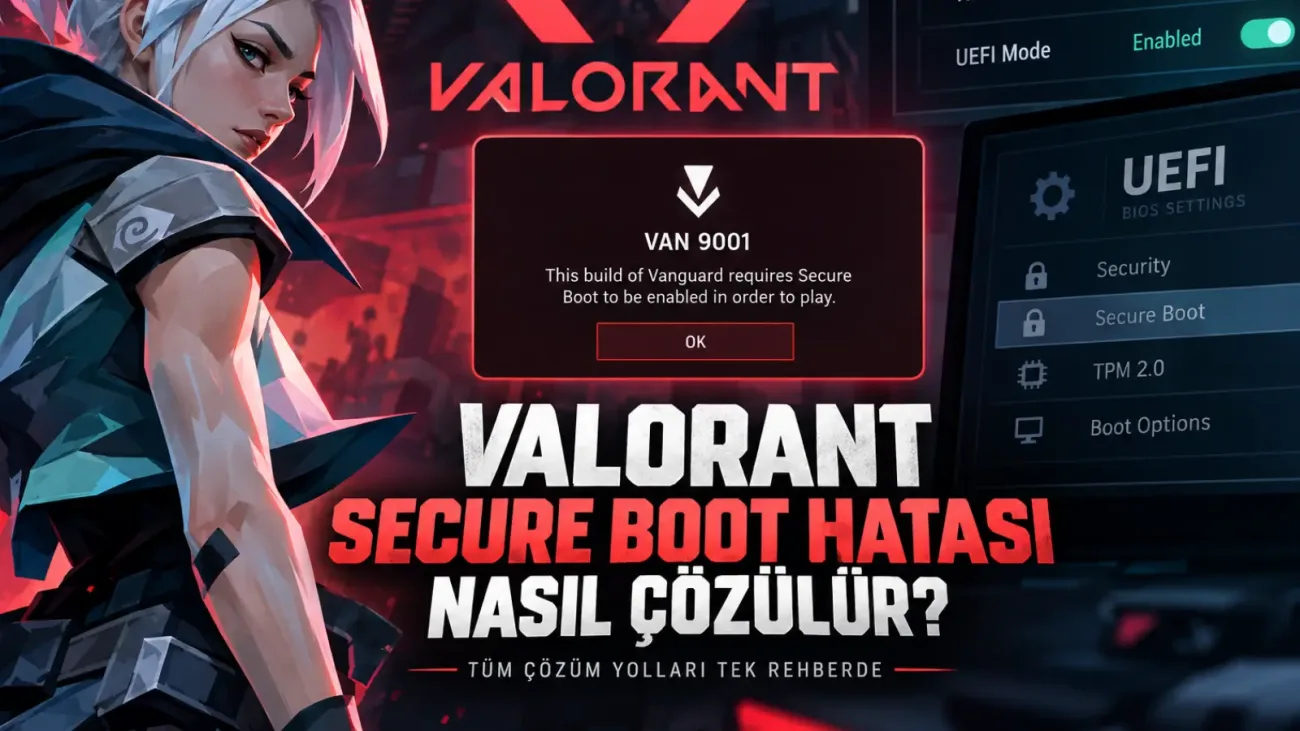
If Valorant shows a Secure Boot or TPM 2.0 error at launch, Riot Vanguard has not been able to complete one of its system security checks. Common causes include Secure Boot being disabled, the PC using Legacy BIOS mode, or TPM 2.0 being turned off.
Why Does Valorant Show a Secure Boot Error?
Riot Vanguard checks several security features before the game starts. On Windows 11 systems, TPM 2.0 and Secure Boot are important parts of those checks. If Secure Boot is off, BIOS mode is set to Legacy, or TPM 2.0 is disabled, errors such as VAN 9001 or VAN 9003 can appear.
How to Check Whether Secure Boot Is Enabled
- Press Windows + R.
- Type
msinfo32and press Enter. - Find BIOS Mode.
- Confirm that BIOS Mode says UEFI.
- Find Secure Boot State.
- Confirm that Secure Boot State says On.
If Secure Boot State says Off, the feature is available but not enabled. If Windows reports that it is unsupported, your current firmware configuration or hardware may not be set up for Secure Boot.
How to Enable Secure Boot for Valorant
Secure Boot is enabled from the BIOS or UEFI settings. Menu names vary by motherboard and computer manufacturer. The option is commonly found under Boot, Security, or Authentication. The firmware setup key may be Delete, F2, F10, or another key depending on the system.
- Restart the computer.
- Enter the BIOS or UEFI setup.
- Open the Boot or Security section.
- Find Secure Boot.
- Set it to Enabled.
- Save the changes and restart.
- Open
msinfo32again in Windows and confirm the new status.
If the Secure Boot option is missing, the system may still be using Legacy or CSM mode.
You May Also Like: How to Fix Error 0xc000007b on Windows 10 and 11?
How to Check TPM 2.0
Secure Boot can be enabled while TPM 2.0 is still off. Press Windows + R, type tpm.msc, and press Enter. The TPM window should report that the module is ready for use. The Specification Version should show 2.0 for the configuration described in the source article.
Do You Need to Update the BIOS?
Not every Secure Boot error requires a BIOS update. If Secure Boot and TPM options are already available and can be enabled, changing those settings may be enough.
A BIOS update may be worth checking if Secure Boot is missing, TPM is not detected correctly, or the system is using very old firmware. Only use firmware files from the motherboard or computer manufacturer's official support page.
If Secure Boot, UEFI mode, and TPM 2.0 are all enabled but Valorant still fails, the next areas to check are Vanguard installation and firmware compatibility.