
 Add as a preferred source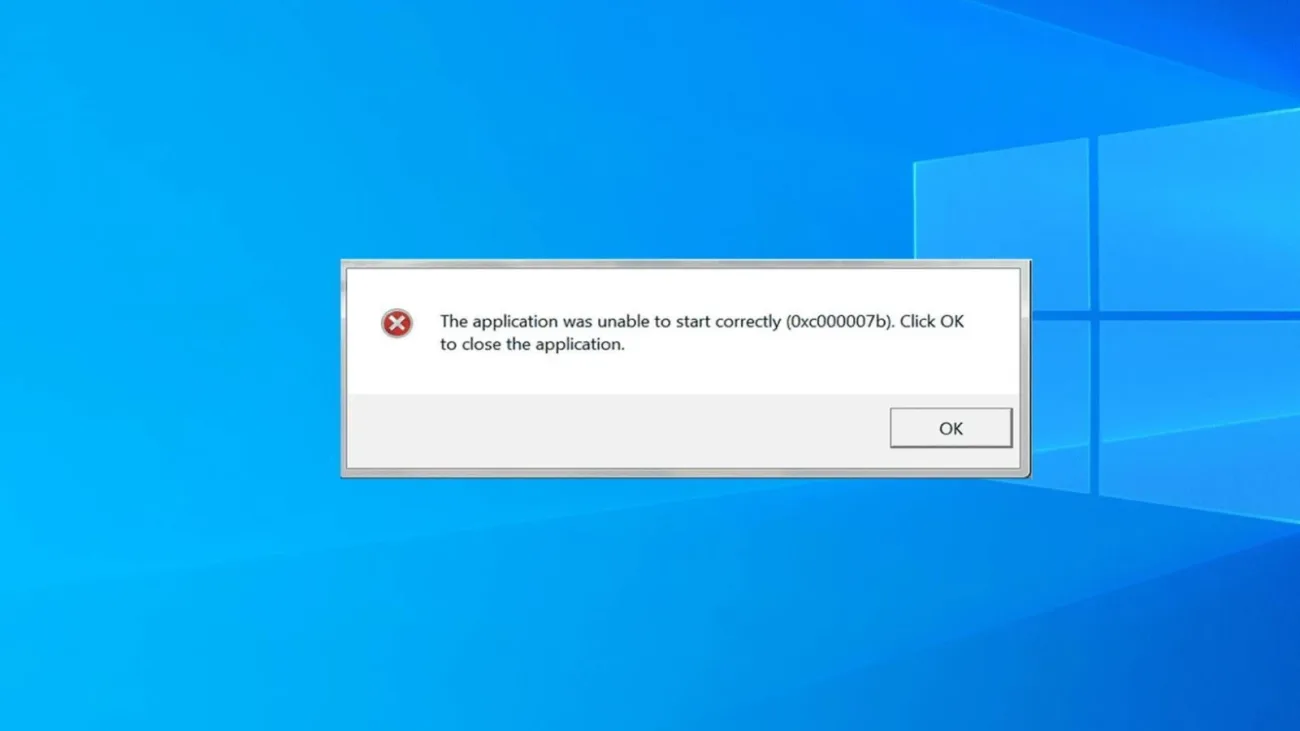
Error 0xc000007b can prevent a game or application from launching on Windows, usually appearing with the message “The application was unable to start correctly.” It is particularly common with PC games, although other Windows applications can also be affected. So, what causes error 0xc000007b? There are several troubleshooting methods worth trying before considering more drastic solutions.
What Does Error 0xc000007b Mean?
Microsoft identifies 0xc000007b as STATUS_INVALID_IMAGE_FORMAT. Windows can display the error when it fails to correctly load a file or component required by an application. Damaged program files, missing runtime components and corrupted Windows system files are among the possible causes.
There is no single solution that works for every 0xc000007b error. If only one game is affected, troubleshooting should normally begin with that game's files and dependencies. When several unrelated programs display the same error, Windows system files become more relevant.
How to Fix Error 0xc000007b?
Reinstall or Verify the Game
- Open the launcher used to install the game
- Find the file verification or repair option
- Allow the launcher to replace missing or corrupted files
- Restart the launcher
- Reinstall the game if file verification does not help
Damaged installation files can prevent a game from loading correctly. Steam, Epic Games and similar launchers can usually verify installed files without downloading the entire game again. Reinstalling should normally be considered after the built-in repair option fails.
Repair Microsoft Visual C++ Redistributables
- Open Microsoft's official Visual C++ Redistributable page
- Check which runtime version the application requires
- Download the required x86 or x64 package
- Install the package or repair the existing installation
- Restart Windows
Many PC games rely on Microsoft Visual C++ runtime libraries. A 64-bit Windows installation can still run 32-bit applications, which means both x64 and x86 runtime packages may be required. The version needed depends on the software you are trying to launch.
Install Legacy DirectX Runtime Components
- Download the official DirectX End-User Runtime package from Microsoft
- Run the installer
- Allow the required components to install
- Restart the PC
- Launch the affected game again
Older PC games can depend on DirectX libraries that are not included as active components in newer Windows installations. The legacy runtime package can add libraries such as D3DX9, D3DX10, D3DX11 and XInput 1.3. Installing it does not downgrade the current DirectX version.
You May Also Like: How to Solve Valorant Black Screen Problem? We Share All the Solution methods!
Repair Windows with DISM and SFC
- Open Command Prompt as administrator
- Run
DISM.exe /Online /Cleanup-image /Restorehealth - Wait for the process to finish
- Run
sfc /scannow - Wait until the scan reaches 100 percent
- Restart the PC
If multiple applications are displaying 0xc000007b, corrupted Windows components may be involved. DISM can repair the Windows component store, while System File Checker scans protected operating system files. Damaged files can then be replaced when a valid copy is available.
Update Windows and the Affected Application
- Open Settings > Windows Update
- Install available Windows updates
- Restart the PC
- Check for updates to the affected game or application
- Review the developer's support page if the problem continues
Compatibility problems can sometimes appear after an operating system or application update. Keeping both Windows and the affected software current helps rule out issues that have already been fixed by the developer. If the error appeared immediately after a recent update, checking for known issues can also save time.
Error 0xc000007b ultimately means Windows could not load something the application expected in the correct format. Starting with the affected application and then moving through its runtime dependencies and Windows system files provides a safer troubleshooting path than manually replacing DLL files. Which method fixed error 0xc000007b on your PC?