
 Add as a preferred source
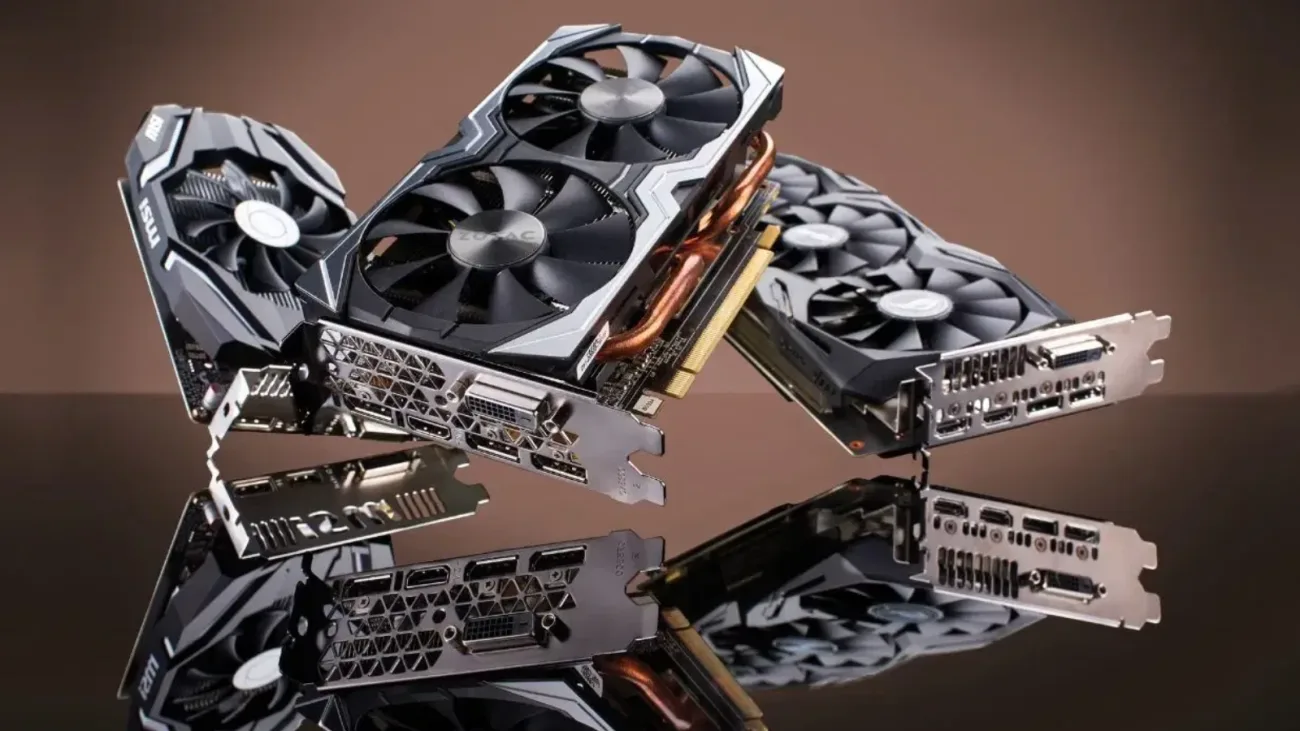
A frozen game, black screen or unresponsive display driver does not always require a full system restart. Windows includes a built-in shortcut for quickly restarting the graphics driver, but there are several other methods depending on the problem you are trying to fix. So, how do you reset a graphics card in Windows? You can restart the driver, re-enable the device or restore NVIDIA and AMD settings to their defaults.
Ways to Reset a Graphics Card in Windows
Not every GPU reset method does the same thing. The Windows shortcut and PnPUtil can restart the graphics device, while NVIDIA and AMD utilities are mainly used to restore customized graphics settings. Device Manager provides another way to cycle the display adapter when the normal shortcut does not help.
How to Restart the Graphics Driver with a Keyboard Shortcut
Windows 10 and Windows 11 support Win + Ctrl + Shift + B for restarting the graphics driver. Your screen may briefly flicker or turn black and you may hear a short system beep. Open applications should normally remain running.
Follow these steps:
- Press Windows + Ctrl + Shift + B
- Wait for the display to briefly turn black or flicker
- Listen for the system notification sound
- Check whether the display returns to normal
This does not factory reset the physical GPU. It restarts the graphics driver that Windows is currently using.
How to Restart a Graphics Card with Device Manager
Device Manager can be used to disable and then re-enable the display adapter. This is useful when the normal Windows shortcut does not restore the graphics device correctly. Save any open work before starting because the display can temporarily disappear.
To restart the adapter:
- Open Device Manager
- Expand Display adapters
- Right-click your graphics card
- Select Disable device
- Wait for the device to be disabled
- Right-click the same adapter again
- Select Enable device
Systems with integrated and dedicated graphics may show more than one display adapter. Make sure you select the correct GPU before disabling anything.
How to Reset NVIDIA Graphics Settings
NVIDIA Control Panel lets you restore global 3D settings to their default values. This does not restart the driver itself. It is mainly useful when a custom setting has caused performance, compatibility or visual problems.
To restore NVIDIA settings:
- Open NVIDIA Control Panel
- Select Manage 3D settings
- Open the Global Settings tab
- Click Restore
- Click Apply
You May Also Like: Resident Evil 7 Runs More Smoothly on Android After AI Optimization
This can be useful after changing global options such as power management, vertical sync or anti-aliasing settings.
How to Reset AMD Graphics Settings
AMD Software Adrenalin Edition includes a Factory Reset option for user settings and profiles. The feature restores customized AMD Software settings without requiring a complete driver reinstall. Any custom profiles you want to keep should be considered before performing the reset.
Follow these steps:
- Open AMD Software
- Search for Factory Reset
- Select Factory Reset - System Settings
- Click Perform Reset
- Confirm with Proceed
- Complete the Quick Setup screen after the reset if required
The display may briefly flicker while the settings are being restored.
How to Restart a Graphics Card with PowerShell
Advanced users can restart a display device through Windows PnPUtil. The /restart-device command is available on Windows 10 version 2004 and later. You need to identify the correct device instance before running the restart command.
Use these steps:
- Open PowerShell or Windows Terminal as administrator
- Run
pnputil /enum-devices /class Display - Find the Instance ID for your graphics card
- Run
pnputil /restart-device "INSTANCE_ID" - Wait for the display device to restart
This method restarts the selected Windows device rather than restoring GPU settings to factory defaults.
When Should You Reset a Graphics Card?
Restarting the graphics driver can help with temporary black screens, flickering, frozen displays or an external monitor that suddenly stops responding. Restoring NVIDIA or AMD settings is more appropriate when the issue started after changing graphics options. If the problem continues to return, updating, rolling back or reinstalling the display driver may be necessary.