
 Add as a preferred source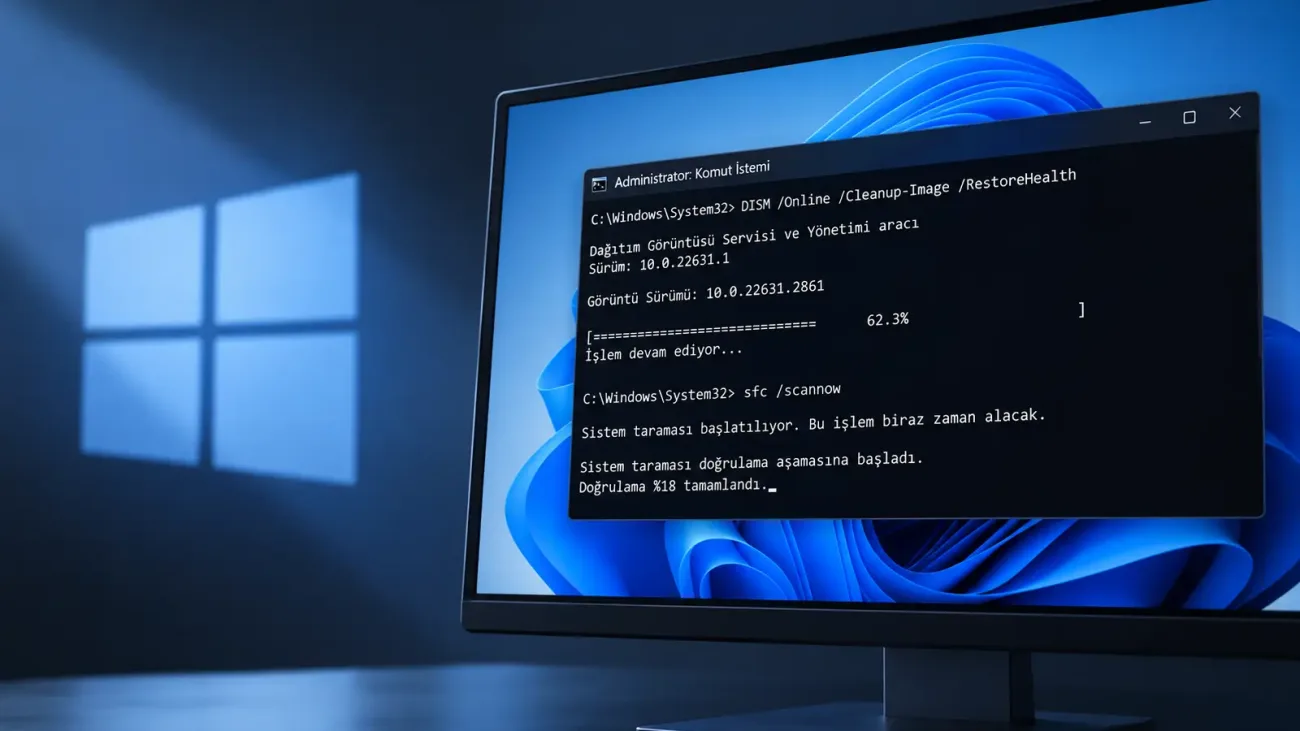
Damage to some system files in Windows may cause applications not to open, updates to fail, or unstable operating system. Windows 10 and Windows 11 contain DISM and SFC tools to control and repair these files. How to repair Windows corrupt system files? In what order should SFC and DISM commands be used when repairing corrupted files?
How to repair Windows corrupt system files?
You can run DISM first and then SFC tool to repair Windows system files. While DISM is checking and repairing the Windows component repository, SFC scans protected system files and tries to replace corrupted or missing files with the correct copies. Therefore, using two tools in succession provides a more comprehensive control than just running sfc /scannow.
Before you run commands, you need to open Windows Terminal or Command Prompt with Administrator. Then you can follow the order below.
- Open Windows Terminal or Command Prompt as administrator.
- Check the Windows image with DISM.
- Repair problems found with DISM if necessary.
- DISM Wait for the process to complete.
- SFC Start scanning.
- Do not close the window until the scan is 100 percent complete.
- Restart the computer after the process is finished.
During scanning, the process may appear to have stopped for a long time on a certain percentage. In particular, the completion of the DISM command may take time depending on the state of the system and the internet connection. It is necessary not to close the terminal window while the process is in progress.
What does the DISM command do?
DISM is a built-in system tool used to check for corruptions in the Windows image and component store. If there is a problem with the healthy components that SFC needs to replace corrupted files, this structure must first be repaired with DISM. For this reason, it is recommended to run DISM before SFC in system file repair.
DISM offers several parameters that can control at different levels. Different commands can be used to quickly check for system disruption, complete scanning, or directly repair the problems found. It is also possible to switch directly to the restoreHealth command for basic repair.
How to use DISM CheckHealth?
CheckHealth command checks whether the Windows image has been marked as corrupted before. It is usually completed in a short time as it does not perform a thorough scan. It can be used when you want fast information about whether the system is in a repairable state or not.
In the terminal window opened as an administrator, type the following command.
DISM /Online /Cleanup-Image /CheckHealthYou can proceed to the next stage if the command reports that corruption has not been detected. If a problem is reported, more comprehensive action can be taken with the ScanHealth or Direct RestoreHealth command.
How to scan the system with DISM ScanHealth?
ScanHealth scans the component repository in more detail than CheckHealth. Therefore, the process may take a few minutes to complete or longer than the system's condition. As a result of the scan, the Windows image shows whether there is a repairable corruption.
You can use the following command for scanning.
You May Also Like: How to Fix the Aternos Username Verification Error
DISM /Online /Cleanup-Image /ScanHealthScanHealth checks the status of the system image instead of directly repairing any file. If the corruption is detected, the next step is to run the RestoreHealth command. If you only want to repair the system, skip the steps of CheckHealth and ScanHealth and directly restoreHealth can be used.
How to repair Windows with DISM RestoreHealth?
RestoreHealth is the DISM option that tries to scan and repair the corruptions in the Windows image. In standard use, you can get the necessary repair files via Windows Update. Therefore, it is useful to have the internet connection working during the process.
Run the following command in the terminal with administrator authority.
DISM /Online /Cleanup-Image /RestoreHealthThe percentage of progress can remain unchanged at certain points for a long time. This does not mean that the transaction alone is frozen. Leave the window open until the command is complete and wait for the result message.
How to use sfc scannow command?
After the DISM process is completed, you can scan the SFC-protected Windows system files. When System File Checker detects missing or corrupted files, it tries to replace them with healthy copies available in the system. This process can be used for problems such as Windows features not working, system errors or unexpected freezes.
Enter the following command in the Windows Terminal or Command Prompt opened as an administrator.
sfc /scannowDo not close the window until the scan is 100 percent complete. At the end of the process, SFC shows a result message about files and repairs performed. Then restarting the computer can help fully implement the changes made.
What does SFC results mean?
The same message is not always displayed when the SFC scan is complete. When there is no integrity problem in the system files, you will get a result stating that Windows does not detect corrupted files. In this case, the problem you are experiencing may be another source.
If SFC finds corrupted files and successfully repairs them, you can restart the system and check the error you are experiencing again. If it is stated that some files cannot be repaired, it may be useful to repeat the SFC scan after rerun the DISM operation. If the scan cannot start at all, retrying through safe mode is also among the options.
Frequently Asked Questions
How long does SFC Scannow take?
Scan time may vary depending on the computer's storage performance and system status. It is necessary not to close the terminal window before the process is 100 percent complete.
Does DISM RestoreHealth require internet?
The standard RestoreHealth process can retrieve the required repair files via Windows Update. If an appropriate local repair source is specified, the process can also be performed using a different source.
What to do if SFC cannot repair corrupt files?
You can first run the DISM RestoreHealth command and try to repair the Windows component repository. After DISM is complete, you can rerun sfc /scannow command.