
 Add as a preferred source
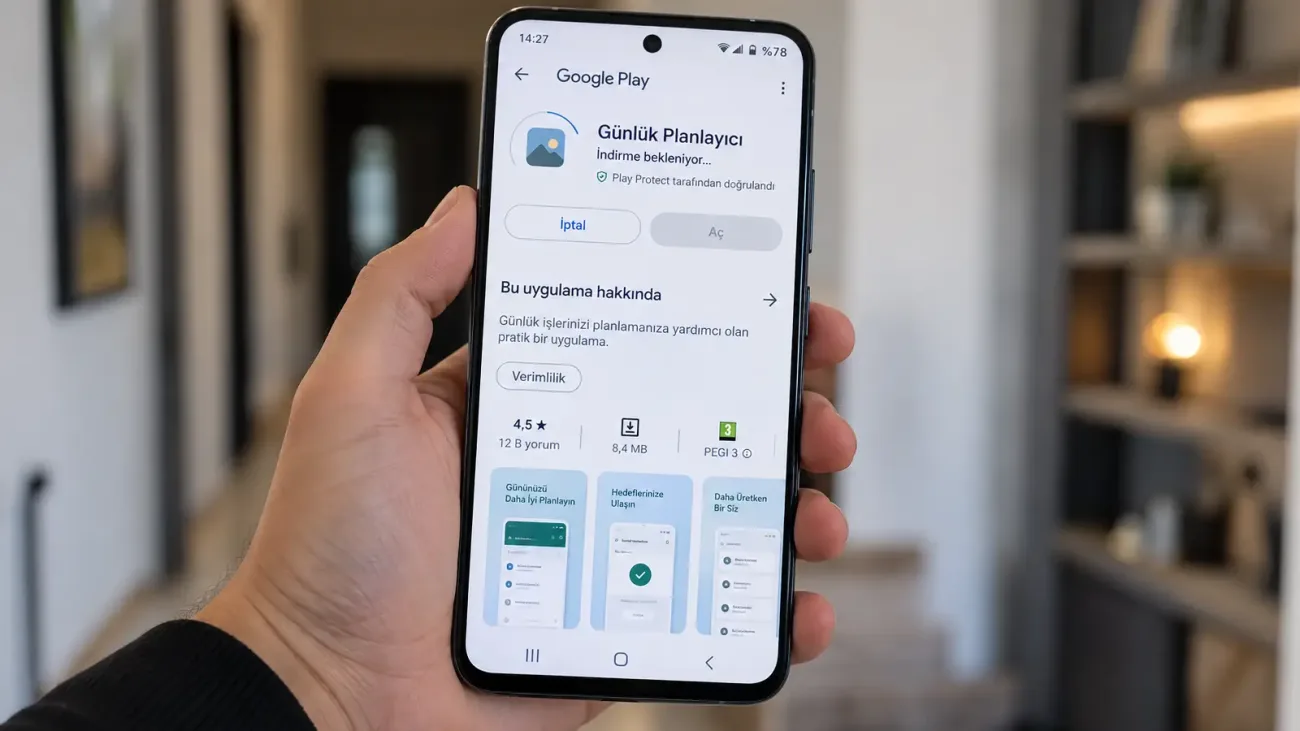
When installing apps or games from the Google Play Store, the download process can sometimes be waiting before it starts. Even if the internet connection is working, ongoing updates can prevent the loading of storage or Play Store data from starting. How to fix Google Play Downloads waiting error and what steps can be taken to restart the download process?
What causes Google Play download waiting error?
There is no single reason for the awaiting download warning. If the Play Store is updating other applications, the new download may be queued or the unstable internet connection may prevent the process from starting. Decreased phone storage and problems with the temporary data of the Play Store can also cause the same error.
In some cases, download preferences may be set up only to the Wi-Fi connection. A temporary problem on the Google Play services side or the old Play Store version may also cause apps to remain on hold. Therefore, it is more correct to eliminate the source of the problem step by step instead of changing a single setting.
How to solve Google Play download problem?
First of all, it is necessary to check the ongoing downloads and internet connection in the Play Store. If the problem is not caused by them, you can switch to Cache, Storage and Google Play Services. It is more appropriate to try more advanced operations when the basic methods do not yield results.
You can follow the following order for the solution.
- Check for ongoing app updates.
- Retry the Wi-Fi and mobile data connection.
- Check the app download preference.
- Leave enough storage space on the phone.
- Clear the Google Play Store cache.
- Restart the phone.
- Update Google Play Store.
- Check the Google Play Services cache.
- As a last resort, remove and re-add the Google account.
You do not need to apply these methods at the same time. Returning to the Play Store after each step and restarting the download makes it easy for you to understand which process solves the problem.
Check pending updates
If the Play Store is updating other applications in the background, the application you want to install may queue. Many apps can start updating at the same time, especially if the automatic update is on, when the phone is switched to Wi-Fi. In this case, it is normal to say that download is expected on the screen.
After opening the Play Store and touching your profile photo, you can enter the Manage Apps and Device section. You can stop the operations you don't need by checking the ongoing updates here. Then restart the download of the app you want to install.
Try again by changing the internet connection
The fact that the phone is connected to the Wi-Fi network does not mean that the internet connection is working without any problems. You can check the link by opening a web page from the browser, if there is a problem, you can turn off and reopen Wi-Fi. If you think there is a problem with the modem side, restarting the connection may also work.
If the download does not start via Wi-Fi, you can temporarily switch to mobile data. If you have the same problem while using mobile data, this time trying with Wi-Fi will help you separate the connection-related problem. If you are using a VPN, it may also be useful to temporarily turn it off during testing.
Check app download preference
Play Store allows you to determine which connection type the apps are downloaded to. If the setting is selected as Wi-Fi only, the download may be on hold when using mobile data. Especially if the problem started after changing the network, it is necessary to check this setting.
You May Also Like: What Is Steam and How Do You Use It? Account, Games, and Refunds
You can check the application download preference by entering the Network Preferences section from the Play Store settings. If you want to download from mobile data, choose the appropriate option. It should be taken into account that mobile data usage may be high in large applications.
Clear Google Play Store cache
As you use the Play Store, it creates temporary files on the phone. A problem with these files may prevent the download and update processes from working properly. Clearing the cache is one of the easiest ways to refresh the volatile data of the Play Store.
Leave enough space in storage
When the phone's storage is close to filling up, it can be difficult to install new apps. It may not always be enough to have as much space as the download size of the application, because additional space may be needed to open files during installation. Therefore, it is useful to leave some free space on the device.
You can remove apps that you don't use, large videos, or downloaded files that you no longer need. After freeing up space, restart the phone and try the download again. If the problem is caused by storage, the application may start to descend normally.
Try restarting the phone
Some system processes or Google services may be temporarily installed if the phone has not been restarted for a long time. Restarting the device allows these processes in the background to work again. Although it seems simple, it is one of the methods that should be tried early in download problems.
After the phone is turned on, go directly to the Play Store and download the application you are having problems with. If the process starts, you do not need to change another system setting. If the error persists, you can proceed to the other steps on the Play Store side.
Frequently Asked Questions
Does clearing the Play Store cache delete apps?
No, clearing the Google Play Store cache does not uninstall apps installed on the phone. The process only clears the temporary files created by the store.
Where to find pending downloads on the Play Store?
You can check the ongoing updates and downloads by entering the Manage Apps and Device screen from the Profile section of the Play Store. From here, you can stop unnecessary operations and have the desired application queue.
Does the storage space download cause error waiting?
Yes, when the free storage space of the phone is too low, new apps may not be downloaded or installed. Restarting the download after opening some space can fix the problem.