
 Add as a preferred source
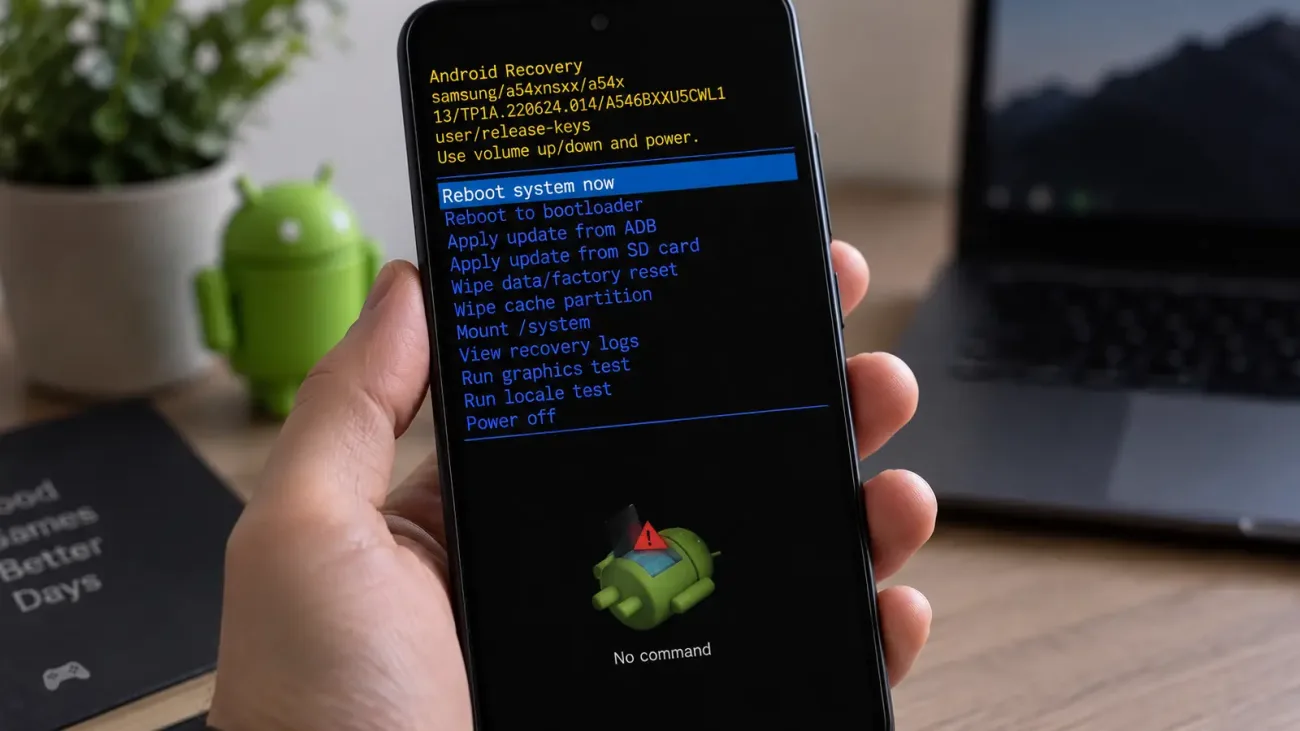
Recovery mode can be used on Android phones when the system is not turned on or when the normal settings menu cannot be reached. This special startup screen provides access to system operations such as restarting, cache clearing, and resetting to factory settings. How to open Android Recovery Mode? Does the key combination used to open Recovery Mode vary according to the phone brand?
How to open Android Recovery Mode?
The method of logging into Recovery Mode may differ according to the brand and model of the Android phone. Most devices use a combination of power and volume keys after the phone is completely turned off. In some new models, the phone may need to be connected to a computer or other device with a USB cable.
When the Recovery screen is reached, the touch screen may not work on every phone. In such cases, the volume up and volume down keys are used to move in the menu, and the power key is used to confirm the selection. In order not to run the option to accidentally delete data in the menu, it is necessary to check the selected line before taking action.
How to enter Recovery Mode on Samsung phones?
In current Samsung Galaxy models, one of the common methods is to hold the volume up and power button together when the phone is turned off. When the Samsung logo appears, the Recovery screen can be expected by leaving the keys. In some Galaxy models and software versions, while doing this, the phone may need to be connected to an open computer or other device with a USB cable.
If the phone is booting normally, it may be useful to try the same key combination with the USB connection again. When the Recovery menu arrives, you can navigate through the options with the volume keys and choose with the power key. The menu structure may vary slightly depending on the one UI and Android version used.
How to Open Recovery Mode on Google Pixel Phones?
In the new Pixel models, Fastboot Mode is opened first instead of the Recovery screen. The fastboot screen can be accessed when the power and volume down keys are pressed while the phone is turned off. From here, it is necessary to go to the Recovery Mode option with the volume keys and to confirm with the power key.
With Android logo on screen No command If the message is displayed, it means that the process has not been completed yet. While holding down the power key, when you short press the Volume Up button and release the two keys, the Android Recovery menu can be opened. Since the key combinations in the old Pixel models may be different, the device generation should also be taken into account.
Introduction to Recovery Mode on Xiaomi and Poco phones
In most of the Xiaomi and Poco models, after the phone is turned off completely, the volume up and power keys are pressed together. After the device logo appears, the recovery screen may take a few seconds to load. System systems such as rebooting and deleting data can be used when the menu is opened.
If the phone only restarts and does not show the Recovery screen, be sure to turn the device completely off first. Releasing the keys too early can also cause the normal start to continue. It is useful to check the combination supported by the manufacturer, especially on older Xiaomi devices, as there may be a change on the model basis.
You May Also Like: Is Xbox Game Pass Getting an Ad-Supported Tier?
What keys are used on OnePlus phones?
In OnePlus devices, many models use power and volume down keys together when the phone is turned off to enter Recovery Mode. When the keys are pressed for a few seconds, the system can switch to the recovery screen. In some versions, language or device lock verification may be requested before the menu opens.
On the OnePlus side, the model and the Oxygenos version can also affect the input method. If the power and volume combination does not work, make sure to turn the phone off again and press the keys at the same time. It should not be forgotten that the data deletion of the data to be made on the Recovery screen cannot be reversed.
When to use Recovery Mode?
Recovery Mode is usually used when the phone does not start normally or a system operation that cannot be done from the Android interface is required. Rebooting devices on the splash screen or repair options offered by the manufacturer can be tried. In case of serious software problems, factory reset can be done as a last resort.
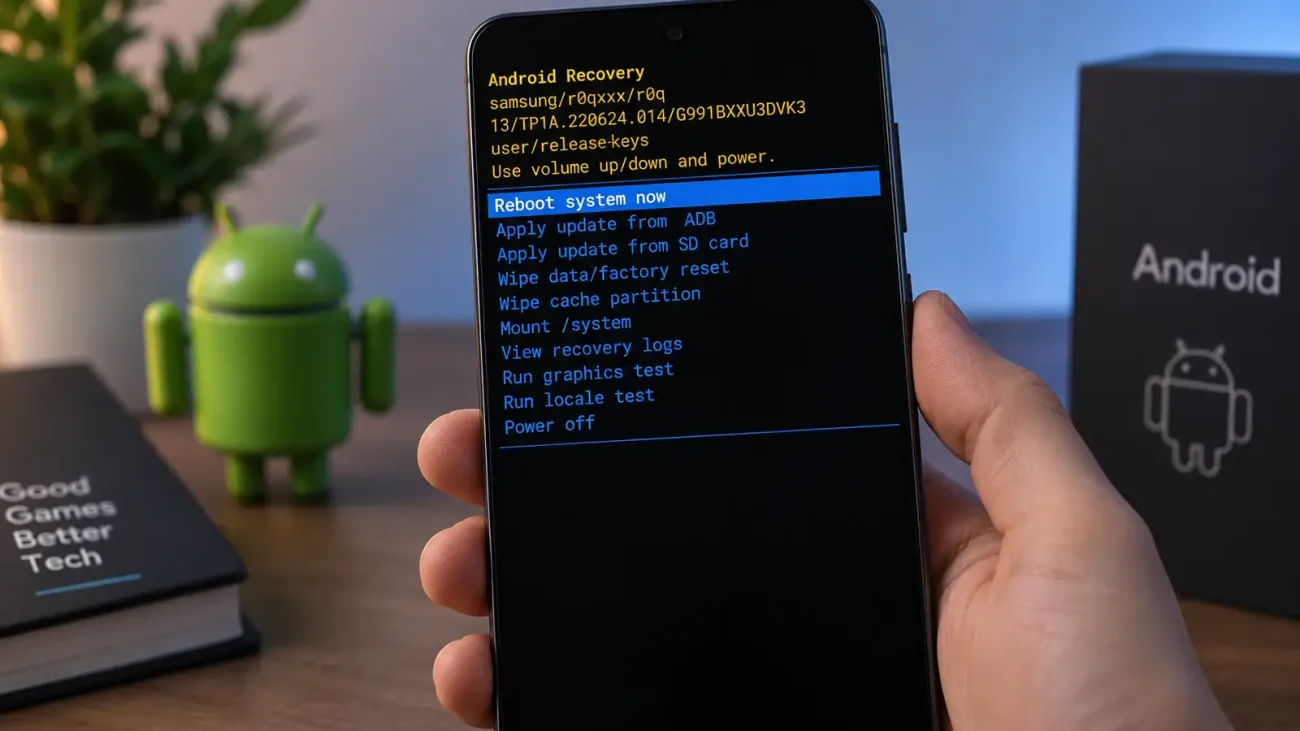
If the phone is working normally, you do not need to enter Recovery Mode for ordinary operations. System update, app cleaning or changing the phone's log settings can be done from the normal Android interface. Recovery is a section that is mostly used for troubleshooting and low-level system operations.
Does Recovery Mode reset the phone?
Just entering Recovery Mode does not delete data from the phone. When the menu opens, you can restart the phone and return to Android without taking any action. Data loss usually occurs when options such as Wipe Data or Factory Reset are approved by the user.
It is necessary to take into account that if the factory reset is to be made, the local data on the device will be deleted. If there is no backup of photos, files and application data, it may not be possible to get them back after the process. If you're thinking of resetting to fix the problem, it's safer to create a backup first if possible.
How to exit Recovery Mode?
If you accidentally entered Recovery Mode, you do not need to do a factory reset. You can return the phone to the normal Android system by selecting the Reboot System Now or Reboot option in the menu. It is usually sufficient to hover over the option about the volume keys and to confirm with the power key.