How to Fix Wartales Crashes

This content was independently prepared by the Oyuncu Konseyi editorial team. Sponsored and partnership content is always clearly labeled. Details: Editorial Standards
Table of Contents
Some players are popular open-world game of recent times wartales playing Sudden shutdown problem can meet. wartales crash problem It usually occurs when fighting crowded groups later in the game. In this content we will include solution Thanks to its methods, your game will not collapse again and you will get a fun game experience.
How to solve Wartales crash problem?
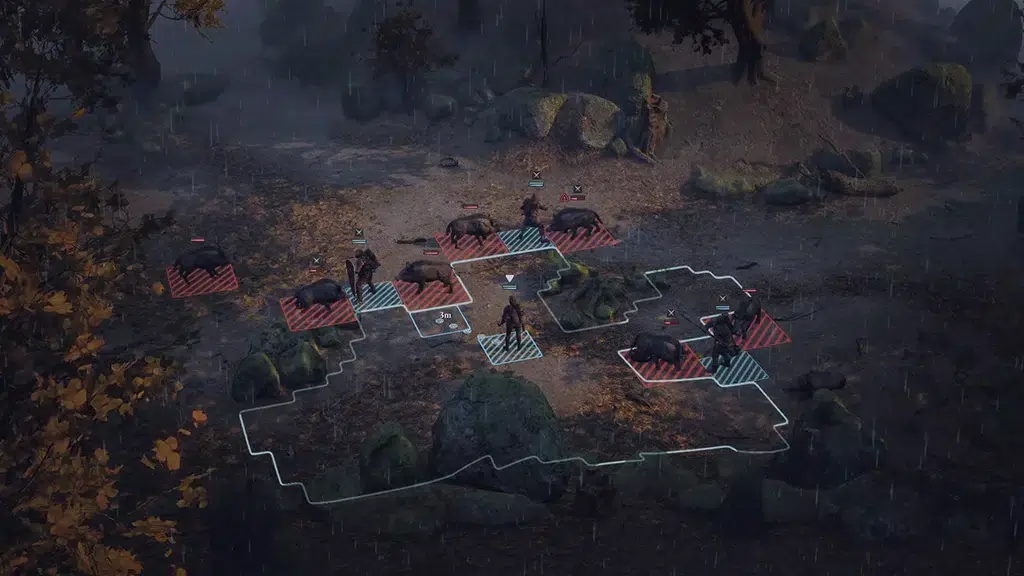
Developed by Shiro Games, Wartales is a turn-based game where you participate in battles by managing your own group in the open world. Although the game does not have many problems in general, some players report that they have faced a crash problem. When you follow our suggestions below wartales crash problem will be solved.
Compare your computer with Wartales system requirements
Many of the crashes, sudden shutdown and kicking problems in games are due to the fact that players try to play games with very low systems. If the hardware of the computer you are using is lower than the Wartales system requirements, the game may crash after a while.
Minimum system requirements
- Operating system: windows 7 64bit
- Processor: Intel 2.0GHz Core 2 Duo or equivalent
- Memory: 2GB RAM
- Graphics Card: GeForce GTX 690
- directx: version 10
- Storage: 6 GB of available space
Recommended system requirements
- Operating system: windows 10 64bit
- Processor: Intel i5 3.1 GHz Quad Core
- Memory: 4GB RAM
- Graphics Card: GeForce GTX 950
- directx: version 10
- Storage: 10 GB of available space
Verify game files
One of the best solutions you can apply for Wartales crash problem is to verify file integrity. By verifying the files, you can download the proper versions of the faulty or corrupted game files. To do this, right-click the game from the Steam library and open the Properties window. Switch to the Local Files tab and press the Verify File Integrity button. We recommend that you do nothing else until the process is completed.
Increase game priority
Increase game priority from task manager for Wartales crash problem. Thus, your computer will transfer many resources to Wartales. To increase the game priority, right-click Wartales in the Actions section in the Task Manager, and then click the Set Priority tab. Here, select one of the High or Real-time options and save the settings.
Start the game in frameless window mode
Starting games in windowed mode can solve crash problems in some cases. Open the game’s features via Steam to launch Wartales in windowed mode. Type “-windowed -noborder” in the opening options in the window that opens and close the windows. When you enter the game, it will now open with windows.
End applications running in the background
If you have a computer with older generation hardware wartales While playing, you need to close all the applications in the background. Especially because internet browsers that are open in the back use a lot of RAM and CPU. crash problem may cause you to live. After entering the game, close all apps from the task manager.
wartales crash problem We have prepared for players who meet with Solution Methods These were. We hope that the methods we have described have helped you solve the problem. Solving the problem If there are different methods you know for, you can write in the comments section. Solutions we have prepared specifically for problems in other games Error Solutions You can find it in the category. We wish you pleasant games!