
What Is Windows 11 Xbox Mode? How to Turn It On and What to Watch For
This content was independently prepared by the Oyuncu Konseyi editorial team. Sponsored and partnership content is always clearly labeled. Details: Editorial Standards
Table of Contents
- What Is Windows 11 Xbox Mode?
- How to Turn On Xbox Mode in Windows 11
- Why Is Xbox Mode Not Showing Up on Your PC?
- Which Games and Apps Work in Xbox Mode?
- Does Xbox Mode Improve Gaming Performance?
- Frequently Asked Questions
- Does Xbox mode work on Windows 10?
- Do I need a controller for Xbox mode?
- Can I use GeForce NOW in Xbox mode?
Playing PC games with a controller has always meant fighting a desktop built for a mouse. Microsoft’s answer is Xbox mode, a console-style full screen interface that started rolling out to Windows 11 PCs in select markets on April 30, 2026. What is Xbox mode in Windows 11? How do you turn it on, and what can you do if the option is not there yet?
What Is Windows 11 Xbox Mode?
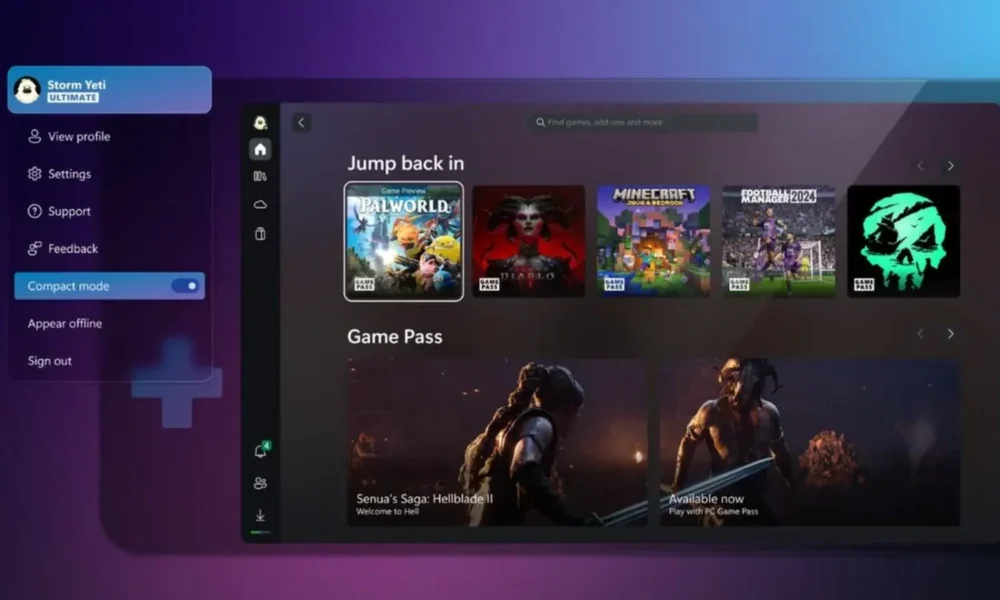
Xbox mode is a feature that replaces the Windows 11 desktop with a full screen, controller-first gaming interface. Microsoft first introduced it on Windows handhelds as the “Full Screen Experience,” then expanded it to desktops, laptops and tablets under the Xbox mode name. Its main job is to pull your Xbox Game Pass catalog and games installed from other storefronts into one home screen.
The feature needs Windows 11 version 24H2 or later and is only available in select markets. Xbox mode does not replace Game Mode, which limits background activity while you play; the two are separate settings under Settings, Gaming. Xbox mode is mainly an interface change built around a console-style experience.
How to Turn On Xbox Mode in Windows 11
Xbox mode needs Windows 11 version 24H2 or later and a supported market. It works on desktops, laptops, tablets and handhelds, and it is built for a controller while still supporting keyboard and mouse. Follow the steps below to turn on Xbox mode in Windows 11.
- Open Start and go to Settings.
- Select Gaming, then Xbox mode.
- Turn on Enable Xbox mode.
- Optionally turn on Show Xbox mode in Task View for an extra shortcut.
- Press the Windows key + F11 to enter Xbox mode, and press it again to return to the desktop.
You can also jump in from the Xbox app, from Game Bar settings with Win + G, or from Task View. On handhelds you pick a gaming home app, and turning on Enter Xbox mode on startup boots the device straight into it after sign-in. On touch screens, swiping up from the bottom opens Task View.
Why Is Xbox Mode Not Showing Up on Your PC?
Microsoft is releasing Xbox mode gradually and only in select markets, and it has not published a list of supported countries. The code can already be on your PC after a Windows update while the setting stays hidden until Microsoft turns it on for your device. That is why two PCs on the same update can show different results. If Xbox mode is not showing up, check the points below.
- Confirm you are on Windows 11 version 24H2 or newer under Settings, System, About.
- Install pending updates in Windows Update and turn on the option to get the latest updates as soon as they are available.
- Update the Xbox app from the Microsoft Store.
- Restart the PC and check Settings, Gaming again.
Some guides show how to force-enable the feature with third-party tools. Forcing a feature Microsoft has not switched on for you can cause glitches such as screen flicker when moving between Xbox mode and the desktop. On a PC you rely on for work, waiting for the official rollout is the safer choice.
Which Games and Apps Work in Xbox Mode?
Xbox mode pulls your library into one place, including the Xbox Game Pass catalog and games installed from other PC storefronts. Reports list Steam, Epic Games Store, Battle.net, Ubisoft Connect and Humble among the supported launchers, and missing games can be added manually from the Library tab. When you launch a third-party game, its launcher starts in the background on its own.
Apps run full screen when possible, and only one window appears at a time. Apps without full screen support sit on a black background, and some desktop keyboard shortcuts are disabled. To switch apps, press Win + Tab or hold the Xbox button, then use A to bring an app forward and X to close it.
Does Xbox Mode Improve Gaming Performance?
On desktops and laptops, Xbox mode is mainly a new interface, so do not expect a guaranteed frame rate boost. Game Mode, which limits background activity while you play, is a separate setting under Settings, Gaming. Some hands-on tests report more free memory with Xbox mode active, but those are unofficial results.
Handhelds are where the difference shows. With Enter Xbox mode on startup turned on, Windows holds back some startup apps until you switch to the desktop, which Microsoft says can help battery life and performance. You can control this per app in Settings, Apps, Startup.
Xbox mode finally gives Windows a couch-friendly way to browse and launch games from several stores in one place. If your PC does not show it yet, the gradual rollout is the most likely reason, not your hardware. Keep expectations modest on desktops, where the gain is convenience rather than speed. Will you use Xbox mode on a desktop, a laptop or a handheld?
Frequently Asked Questions
Does Xbox mode work on Windows 10?
No, it requires Windows 11 version 24H2 or later. Windows 10 PCs do not have the setting. You need to upgrade to Windows 11 first.
Do I need a controller for Xbox mode?
The interface is designed for controllers, but keyboard and mouse still work. You can move through menus with the arrow keys. A controller gives the smoothest experience.
Can I use GeForce NOW in Xbox mode?
Reports say you can set NVIDIA GeForce NOW as the default cloud gaming service in the Xbox app settings. That means cloud play is not limited to Xbox Cloud Gaming. You still need a separate GeForce NOW membership.