
 Add as a preferred source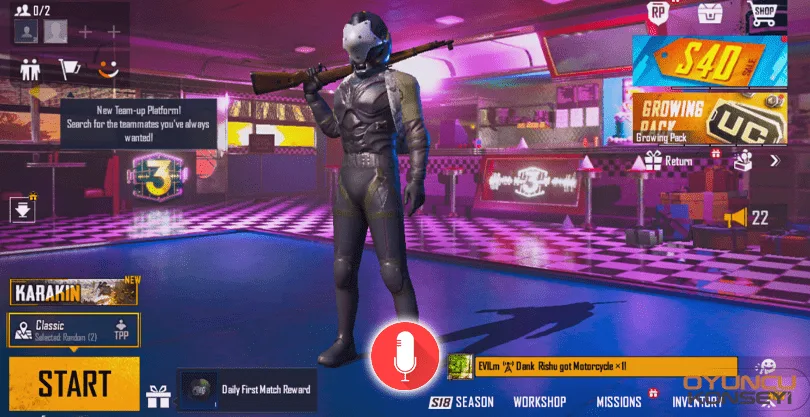
The most important thing for those who play as a PUBG Mobile 4 team is to communicate with the team by voice. but pubg mobile microphone problem 2021 is still happening in the year. Many factors may play a role in the emergence of this problem. There are a few simple steps to solve the problem.
PUBG Mobile Microphone Problem 2023 (Solved)
Being in voice communication with the team is always an advantage for you. Especially if you are playing the game in competitive mode, notifications from your team about opposing players are very important to you. But pubg mobile No sound goes away from the microphones of some players playing. This causes them to be unable to give the information they will give to their teams on the spot and to return to the lobby early.
Check PUBG Mobile Permissions
In order to play the game, make sure that the permissions you gave to the game at the very beginning are given exactly. If you are not sure, enter your phone's settings and tap the Applications tab. From the Application Permissions section, you can easily see which apps you have given which permissions. From here, click on the microphone permissions and check if you have permission for PUBG Mobile.
Clear cache
Again, enter the applications in the phone settings and tap PUBG Mobile. Then select Clear cache option. It is said that this solution is precisely working by many users. But be careful, after doing this, you will need to download all the extra content in the game again. If you don't have an internet package and you don't have a wifi network around you, don't do it.
Those Who Have Pubg Mobile Microphone Problems Here!
You May Also Like: iOS 27 Battery Drain: Why It Happens and What You Can Do?
pubg mobile emulator microphone problem We have a definitive solution for living players.
- First, type privacy settings instead of Windows search and click on the first result.
- Enter the microphone section from the left menu in the window that opens and check whether the emulator program you are using is granted microphone permission.
- If the permissions here are open, right-click the sound icon in the date and time section and enter the Voice Recorders section. Open the properties of the microphone you are using and switch to the Advanced tab.
- Click Allow apps to take over the priority control of this device and click the Apply OK keys.
With the simple steps above pubg mobile microphone problem It can be solved easily. After following these steps, you can let us know whether the problem has been solved or not in the comments section below. If there is another solution you find, you can share it with us. Also Error and Solutions You can take a look at the solutions to many problems that you may encounter in different games.