
 Add as a preferred source
Steam download speed depends on more than the speed of your internet plan. The download region you use, other apps sharing the connection, Wi-Fi conditions, disk performance, and Steam settings can all affect how long a game takes to download. If Steam feels unusually slow, there are several things you can check before blaming your connection.
Why Is Steam Downloading So Slowly?
If a browser, cloud storage app, another game launcher, or any other download is active in the background, your available bandwidth is split between them. Other devices on the same network can have the same effect when they are streaming video or downloading large files.
Wi-Fi quality also matters. Distance from the router, walls, interference, and crowded wireless channels can reduce stability. A wired Ethernet connection usually gives more consistent results. If you need to use Wi-Fi, make sure the signal between the router and your PC is strong and stable.
How to Increase Steam Download Speed
Start with the Steam client and the devices using your network. These steps can improve download performance without changing your internet package.
- Close apps that are using the internet in the background.
- Make sure Steam is not applying a download bandwidth limit.
- Try a download region close to your physical location.
- Clear the Steam download cache and restart the client.
- Use a wired connection when possible.
- Install the game on a fast drive with enough free space.
After changing these settings, fully close Steam and open it again. Clearing the download cache does not remove installed games, although Steam may ask you to sign in again. It is also normal for the displayed download rate to drop briefly while Steam writes files to the drive or verifies downloaded data.
How to Change the Steam Download Region
Steam normally chooses a content server based on your location. If that server is busy, download speed may be lower than expected. Open the Downloads section in Steam settings and test another region close to you.
A distant server is not automatically faster. Start with servers in your country or nearby regions. If several regions produce similar speeds, the bottleneck may be your local network, router, storage drive, or internet provider rather than Steam's server.
You May Also Like: Best Internet Speed Test Sites and Apps
Can an SSD Make Steam Downloads Faster?
An SSD can write downloaded data and unpack game files faster than a traditional hard drive. That can reduce pauses during installation, patching, and file processing. It does not increase the actual speed of your internet connection.
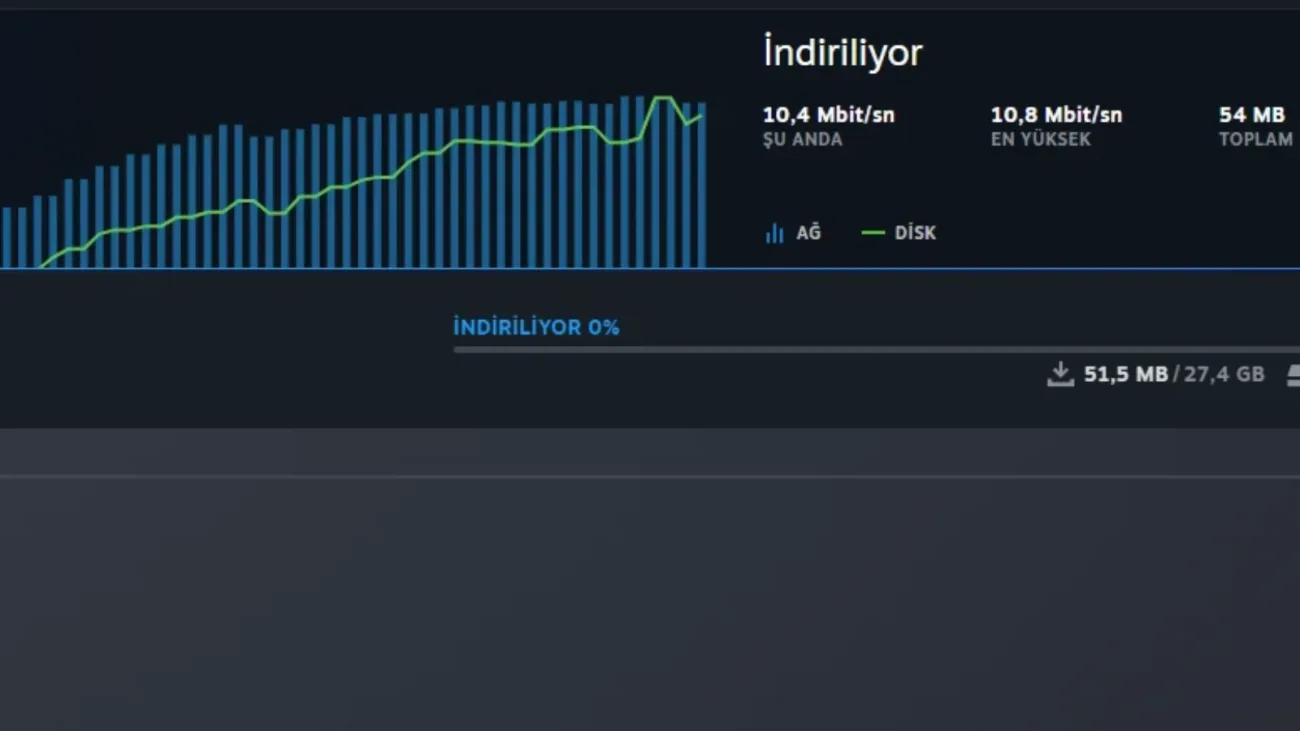
If your internet speed is high but Steam keeps pausing or fluctuating, check disk usage in Task Manager. Downloads can slow down when the drive reaches 100 percent active time. Keeping enough free storage available also helps Steam install and update games more smoothly.
Final Checks
For slow Steam downloads, check background traffic, your download region, Steam's bandwidth settings, Wi-Fi quality, and disk usage first. A wired connection, a cleared download cache, and a faster storage drive can make downloads more consistent when one of those areas is the bottleneck.
Frequently Asked Questions
Why does Steam download games slowly?
Slow Steam downloads can be caused by a busy download server, other apps or devices using the same connection, weak Wi-Fi, bandwidth limits, or a storage drive that cannot keep up with file processing.
Does clearing the Steam download cache delete games?
No. Clearing the download cache removes temporary download data but does not delete installed game files. Steam may ask you to sign in again afterward.
Can Ethernet improve game download speed?
A wired connection can provide a more stable link than Wi-Fi, especially when the PC is far from the router or the wireless network is congested.