
 Add as a preferred source

Developed by Shiro Games wartales Recently, it has switched to version 1.0. With the updates brought, some players Low FPS continues to take. we prepared Wartales FPS Boost Guide Thanks to the suggestions we have included in it, you can get a fluent gaming experience.
Wartales FPS Boosting Methods
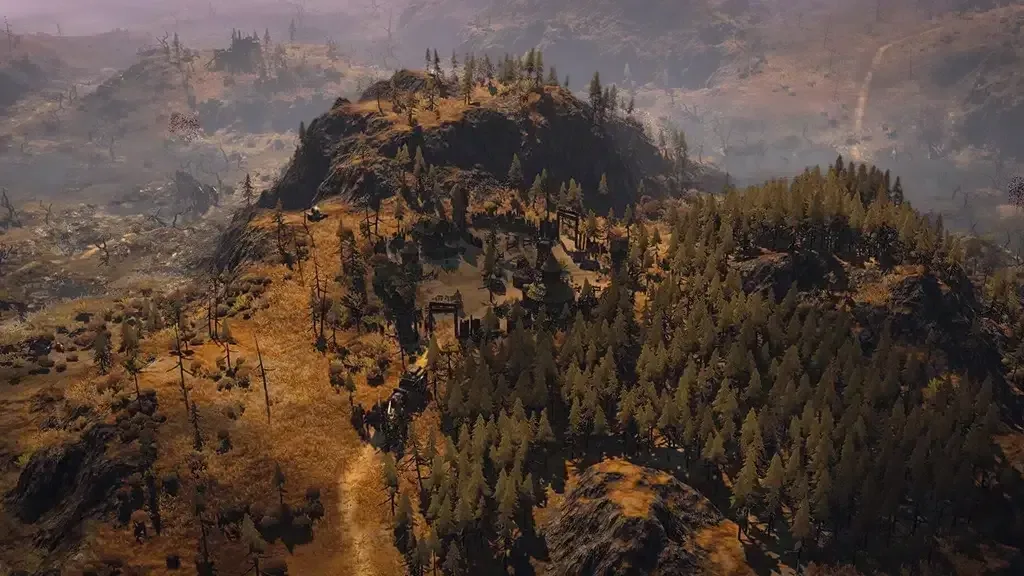
With its quality graphics and gripping gameplay style, Wartales has managed to attract a lot of players. Especially with the map design, the effects can reflect the game very well.
With the updates made until the Wartales 1.0 version is released, the game is made a little more optimized. wartales crash problem We can say that it has been removed a little bit. However, due to the FPS problem, collapse or muscle problem There are living players. Here it will allow you to play the game fluently Wartales FPS Boosting Methods,
Change graphics settings
If you want to maximize the FPS value in the game, the following Wartales graphics settings will help you. The changes you will make in these settings will allow you to obtain different amounts of FPS according to the hardware on your computer.
- Weather Effects: Disabled - Low
- ambient occlusion: Disabled
- terrain: High - Medium
- world detail: Disabled
- Volumetric Effects: LOW
- Units in the world: medium
- anti-aliasing: Disabled
- Reflections: Disabled
Turn on Windows Game Mode
Many players prefer to play games with the Windows Game Mode feature off. You can get several FPS by turning on the Windows Game Mode feature. To do this, click on the Game tab in the Windows settings. Enter the Game Mode tab from the window that opens and activate the game mode.
Activate Ultimate Performance Mode
If your computer has a little more up-to-date hardware and you still get low FPS from the game, you can try using the Ultimate Performance Power Mode. In this power mode, your computer will always work with 100% performance, helping you get the highest FPS.
You May Also Like: FUT mojj Valorant Crosshair Settings
To add the Ultimate Performance Power Mode, first open the CMD screen. to cmd line"POWERCFG -Duplicatescheme E9A42B02-D5DF-448D-AA00-03F14749EB61Paste the code and press Enter. After doing this, enter the Windows Power Management settings and select Ultimate Performance.
Make a video card update
You can play the game much more fluently by upgrading the video card drivers installed on your computer to the current version. You can completely remove the installed old video card driver from your computer with the DU (Display Driver Uninstaller) program. When you do this in safe mode, the process will be completed much faster. Installing the most up-to-date video card drivers will be useful for increasing Wartales FPS.
After completely removing the old video card drivers from the computer, complete the installation of the current video card driver and restart the computer. Finally, you can get a fluent experience in the game by making the necessary performance settings from the control panel of the video card.
Result
we prepared Wartales FPS Boost Guide In our content, we have included only suggestions that will give you the most FPS value. If there is a better FPS increase method that we overlook or that you know, you can specify it in the comments section.