
 Add as a preferred source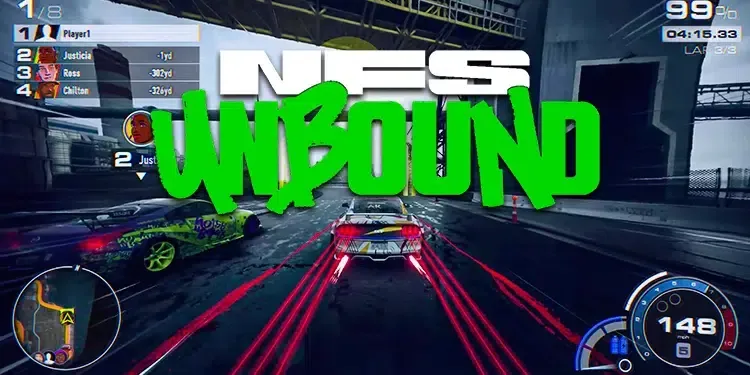
NFS Unbound, the last game of the racing game Need for Speed, played with great admiration by millions of players around the world, made its debut. The graphics in the game are quite satisfactory, but you need to have an above-average computer to play with high graphics. If you can't play the game fluently, NFS Unbound FPS Boost You can play at high FPS values by trying the graphics settings we described in the guide.
NFS Unbound FPS Boost
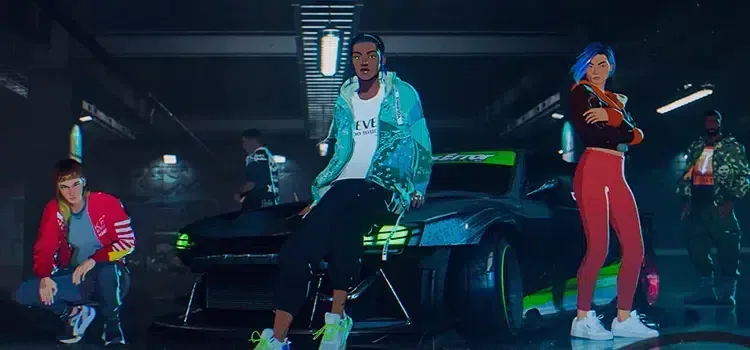
The latest version of the legendary racing game series, NFS Unbound, has very high graphics and details. In addition to detailed vehicle models, the fact that the environment is designed in a very detailed way increases the realism significantly. However, since this realism is not reflected in the driving mechanics of the cars, the game also has a classic arcade atmosphere.
There will be players who cannot get enough FPS due to the effects and graphics in the game. Especially NFS Unbound players who have low FPS problems will have a decrease in the gameplay. Players who have encountered such an error the best NFS Unbound Graphics Settings can play the game much more fluently.
NFS Unbound Graphics Settings
These graphics settings, which we include in our NFS Unbound FPS Boost Increasing Guide, are FPS-oriented. Therefore, after applying the following settings, some details will be reduced. However, we will still try not to compromise too much from the graphics. Here are the in-game graphics settings,
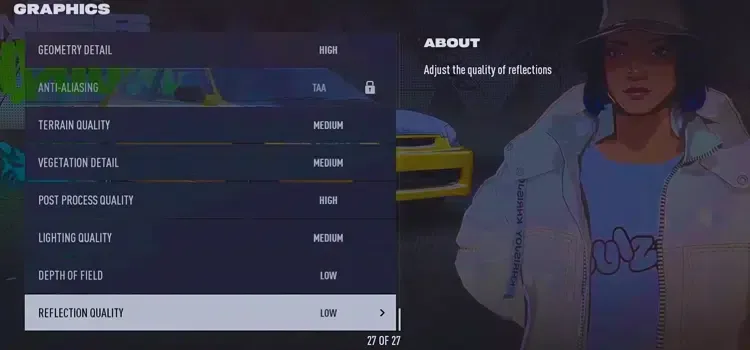
- Motion Blur: off
- Screen Mode: fullscreen
- Screen Resolution: 1920 x 1080 (the best resolution settings your screen supports.)
- Vertical Sync: off
- Dynamic Resolution Scaling: off
- upsampler: DLSS (You can use AMD FSR if your video card does not support DLSS.)
- Upsampler Preset: Quality or Balanced
- Nvidia Reflex Low Latency: Ten
- Texture quality: high
- Shadow Quality: low
- Texture Filtering: Medium or High
- Ambient occlusion:
- Effects Detail: low
- geometry detail: low
- Anti-aliasing: TAA
- Terrain Quality: medium
- Vegetation Detail: medium
- Post-Process Quality: low
- Lighting quality: medium
- Depth of field: low
- Reflection Quality: low
You can get a slightly better look by making minor changes in the above settings. Of course, in this case, we would like to remind you that you may experience FPS loss. NFS Unbound FPS Boost We hope the graphics settings we have included in our guide have worked for you. More Game Guides Do not forget to visit the relevant category for
You May Also Like: Battlefield 2042 Dozer Specialist Guide