How to Fix Discord Microphone Problems
This content was independently prepared by the Oyuncu Konseyi editorial team. Sponsored and partnership content is always clearly labeled. Details: Editorial Standards
Table of Contents
Even if Discord is one of the applications that try to keep up with today’s technology, it is normal to encounter problems from time to time. Especially the discord microphone problem is a reason for many people.
Discord microphone problem and solution
Discord microphone problem is one of the problems you can solve quite easily. It usually occurs because your computer re-reads your devices and Discord tries to define it automatically. You can try the solutions below for the Discord microphone problem and solution.
Edit Discord sound settings
Access the Discord sound settings you see in the picture above. To access here, you can click on the wheel mark in the Discord where your username is written below. Then, click on the place that says “Sound and Image” from the left menu on the screen that opens. From the settings you see here,
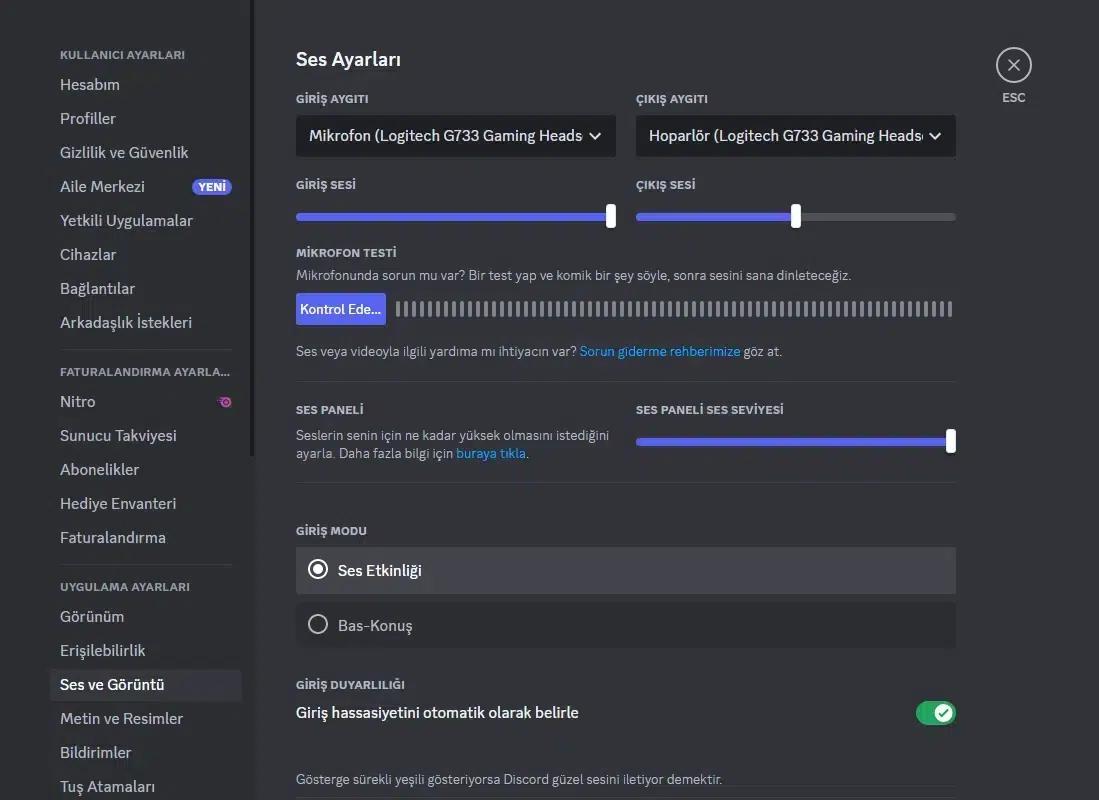
Input Device: Select the microphone you are using.
Output device: Select the speaker or headset you are using.
Input sound: It is the volume of your microphone, you can turn it on until the end.
Output Sound: It is the level of sounds from Discord. It can stay in the middle.
Input mode: Select Audio Activity.
These are all the settings you can make on the discord side. In addition, right-clicking without starting the Discord and starting it as an administrator will sometimes eliminate the problem of your voice going intermittently. Now there is the configuration of Windows-sided settings.
NOTE: How to fix Discord not connecting error? You can also find solutions that will be useful to you.
Edit Windows audio settings
In the 2nd step of the Discord microphone problem solution process, there is the sound settings section of your Windows computer. At the bottom of your screen, you will see a sound icon at the far right of the Windows task menu at the bottom of your screen. Right click on that icon and click on the option that says Sound Settings.
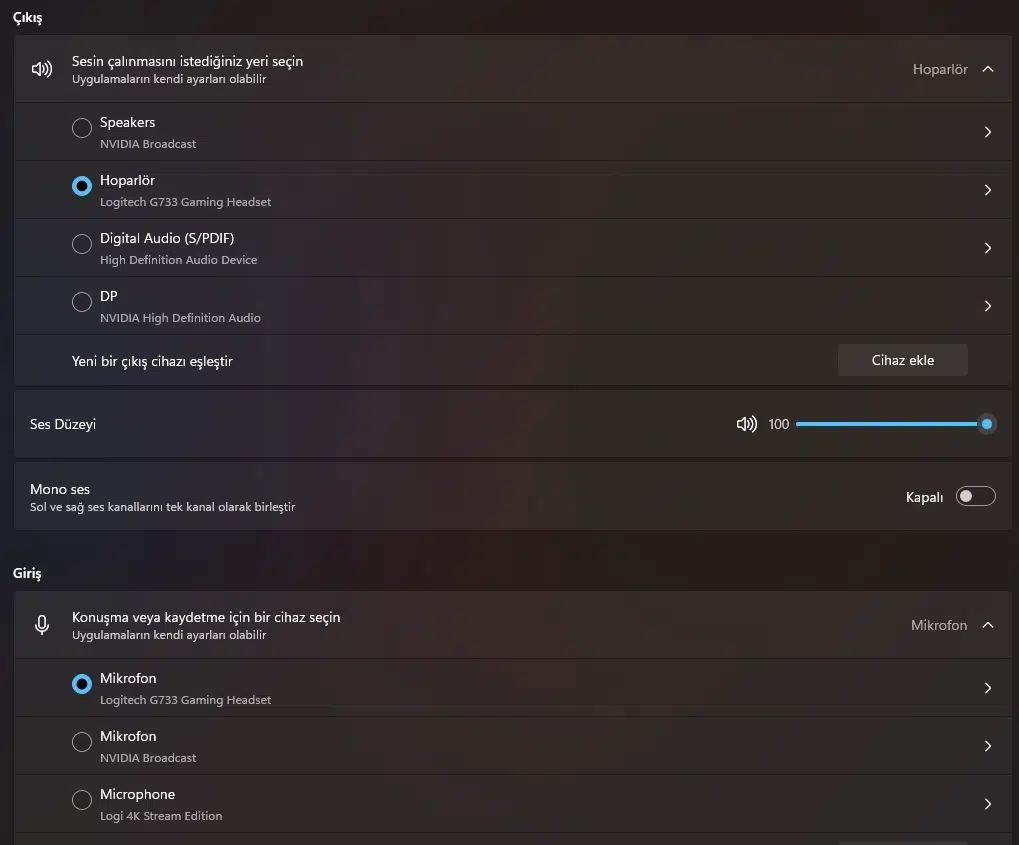
Output: Select the headset you are using.
Introduction: Select the microphone you are using.
The important thing here is to choose the devices you have made in the setting discord section. If you choose two different devices, Discord sounds and Windows sounds can mix with each other and create problems.
We do not think that when you do this about the Discord microphone problem and its solution, there will be no problems. If your problem still persists, we recommend that you update your computer sound drivers. Do not get help from additional software while doing this. Run the Aygin Manager and use the Update option by right-clicking on your audio driver there. In this way, you will be able to have a smooth experience with an up-to-date audio driver.
How to solve the Discord microphone problem? We hope we were able to help you. If more of this type Error and solution If you want to read the topics, you can go to the relevant category.