
 Add as a preferred source
Apex Legends, developed by Respawn Entertainment, managed to spread to large audiences. Bug fixes and new contents that come with updates have increased players' interest in the game. With the new updates, some players continue to receive low FPS, although optimizations are made. we prepared Apex Legends FPS Boost Thanks to its guide, you can play the game with much higher FPS values.
Apex Legends FPS Boosting Methods
Apex Legends entered the game world in 2019. Apex Legends, which took its place among the Battle Royale game genres that were popular at that time, was played by many players. Although many players had FPS problems at first, this problem was minimized thanks to regular updates. If you haven't played the game before and you want to play it right now, it's not too late for anything. Apex Legends recommended system requirements are now considered entry-level. However, if you are having FPS problems in the game, you can try the following solution methods.
Apex Legends Graphics Settings
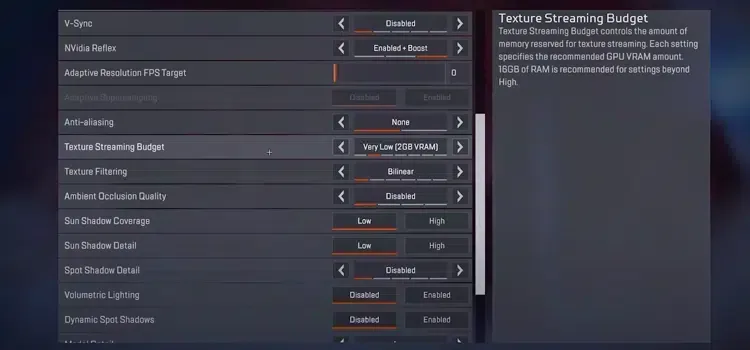
You can increase the FPS value thanks to the changes you will make through the Apex Legends in-game settings. When you make performance-oriented changes to the graphics settings, the image and effect quality will decrease. In return, the FPS value you receive will increase. If you are getting low FPS below Apex Legends Graphics Settings can try to play with.
- Adaptive Resolution FPS Target: 0
- Adaptive Supersampling: disabled
- Anti-aliasing: noble
- Texture Streaming Budget: very low
- Texture Filtering: biliear or anisotropic 2x
- Ambient Occlusion Quality: disabled
- Sun Shadow Coverage: low
- Sun Shadow Detail: low
- Spot Shadow Detail: low
- Volumetric Lighting: disabled
- Dynamic Spot Shadows: disabled
- Model Detail: medium
- Effects Detail: low
- Impact Marks: disabled
- Ragdolls: low
Change Windows Power Management
Changing the Windows Power Mode will help you increase Apex Legends FPS. After you install all updates regularly, you can try changing the Windows Power Management mode. Type Power and Sleep settings in the Windows Search section and click on the first result. In the window that opens, open the Additional Power Options setting and select High Performance from Power Plans. After this process, your processor will run at full performance.
You May Also Like: Best FPS Games
Verify game files
Apex Legends is constantly updated. When there are missing or errors in the files you download during these updates, it can have an effect on the game. In order to avoid problems in the game, verify the integrity of the game after the updates. To do this, right-click the game from the Steam library and open the Properties window. From here, open the Local Files section and verify the game files.
All we know Apex Legends FPS Boost We shared the methods with you. We hope that the methods we have described will solve your problem. You can send your questions to us in the comments section. To get up-to-date and informative content about the games Game Guides You can browse the category.