
 Add as a preferred source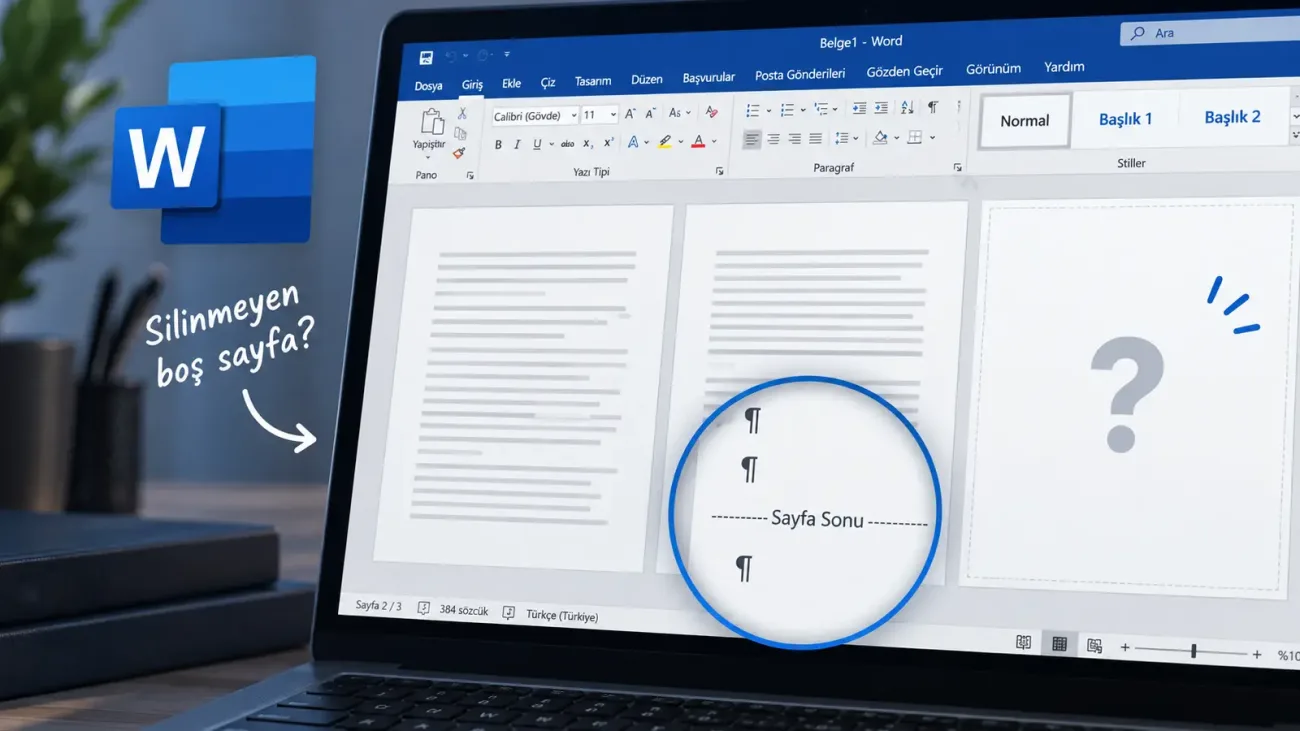
Microsoft Word can sometimes leave a blank page that refuses to disappear even when there is no visible text on it. Hidden paragraph marks, manual page breaks, section breaks, or Word's required final paragraph are usually responsible.
How to Delete a Blank Page in Word
Click the blank page and try Backspace or Delete first. If that does not work, show Word's hidden formatting marks. Press Ctrl + Shift + 8 on Windows or Command + 8 on Mac to display paragraph marks and breaks.
- Press Ctrl + Shift + 8 to show paragraph marks on Windows.
- Select extra paragraph marks on the blank page.
- Press Delete or Backspace.
- If you see a manual page break, select and delete it.
- Hide paragraph marks again when you are finished.
Manual page breaks can be removed. Normal page transitions created automatically by Word are not deleted in the same way.
Why Won't the Blank Page Delete?
A manual page break is one of the most common causes. When formatting marks are visible, Word labels it as a page break. Deleting that break can pull the following content back onto the previous page.
Section breaks can also force content onto a new page. Next Page, Odd Page, and Even Page section breaks may create an empty-looking page. Be careful when deleting them because section breaks can control headers, footers, margins, and other page formatting.
A blank page at the very end of the document can be caused by Word's required final paragraph. That paragraph cannot be removed completely. If it does not fit on the previous page, it can move by itself to a new page.
You May Also Like: Is the RTX 60 Series Delayed to 2028? What Leakers Claim and What Nvidia Has Confirmed
How to Remove a Blank Page at the End of a Document
If the last page contains only one paragraph mark, select that mark and reduce its font size to 1 pt. In many documents this makes the final paragraph fit on the previous page and removes the blank page.
If a section break is responsible, check the section type before deleting it. Converting the break to a Continuous section can remove the extra page while preserving more of the existing layout.
To remove an entire page that contains content, press Ctrl + G on Windows, type \page, and press Enter. Word selects the current page. Check the selection and press Delete if it is the page you want to remove.
Final Check
Most blank pages in Word are caused by hidden paragraph marks, page breaks, or section breaks. If the stubborn page is at the end of the document, shrinking the final paragraph is often more effective than trying to delete it.