
 Add as a preferred source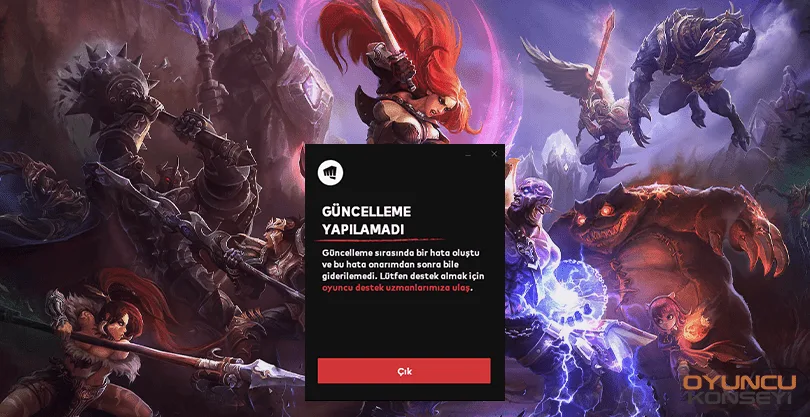
League of Legends is still one of the most played MOBA games. With the constant updates and character balancing, different champions come to the fore every time in the game. Of course, the only thing that comes with the updates is not the champion balancing. Among the updates, there are innovations that increase performance and game interaction. In addition, players may experience some problems after the update. lol update problem It can be the best example of this. Ok then League of Legends could not be updated problem and solution What is it?
How to fix lol update problem?
With the new updates, some players, albeit in the minority, started to receive error messages. This error message appears before the players while opening the game client, and this situation is constantly repeated. LOL could not be updated when the game client was opened! There are a few simple methods that players who encounter the error message can apply.
- Verify game files
- Game files may be damaged for any reason. Therefore, you may be getting this error. What you are going to do is very simple. Run the game client and click on the wheel symbol at the top right and go to Settings. Here, when you scroll down the General Settings section a little, you will see the Full Repair button. Click the button and wait for the process to complete. This process may take a short or long time depending on your computer and internet speed.
- Run the game as administrator
- lol update problem It is the best solution I would suggest. In some cases, you may need to use all the authorizations of the operating system you are using. When running the game, you must run it as administrator to use Windows privileges. To do this, right-click the client and select Run as administrator. If you don't want to do this all the time, right-click and open the Properties window. From the window that opens, go to the Compatibility tab, click the box next to Start as an administrator, and press the App and OK buttons. Now the application will be run as administrator.
- Build everything from the beginning
- If you have tried all the solution methods and did not get a result, remove the game completely from your computer. Do not remove the game only from the Programs and Applications section. Even if you delete the game in this way, some files may be left behind. To prevent this, you can use the CCleaner application. In this way, you will completely remove the game from your computer without any problems.
- Create storage
- You will need enough storage space to download new files while updating. If there is not enough free space, it is very normal to get this error because new files cannot be loaded properly. Before installing updates, make sure there is enough free space where the game is installed.
LOL could not update problem and solution These are the steps you can take. If you still encounter the same problem after following these steps, please Riot Games Support System You can request extra help. Also similar to this Error and Solutions If you want what can be done for you to come, you can specify these requests in the comments section.
You May Also Like: What Is the Valorant DX11 Error And solution?