
 Add as a preferred source
Developed by Riot Games, Valorant can be played on most computers. Although many of the players can play the game fluently, some players may experience FPS drops and freezing problems. VALORANT FPS INCREASE With the graphics card and graphics settings that we will explain in our guide, you can play the game at more stable FPS values.
VALORANT FPS INCREASE METHODS
- Changing graphics settings
- Optimizing video card settings
- Changing Windows Power Options
Players who play Valorant at a competitive level, in general, prefer to collect new generation computer systems to get high FPS values. Computers with up-to-date hardware can play most games fluently. Let's VALORANT FPS INCREASE Let's take a closer look at the methods.
Use Valorant performance-oriented graphics settings
Valoron in-game graphics settings, which will give the best performance in a competitive match, significantly increase the FPS value in the game. However, these settings will reduce the graphic quality a lot.
This will not be a problem as players who play FPS games competitively do not give much importance to graphics quality.
- Material quality: Low
- Texture quality: Low
- Detail quality: Low
- Interface quality: Middle
- VINYET: Closed
- vsync: Closed
- Anti-aliasing: Closed
- Co-op filtering: 2x
- Increase clarity: Closed
- [BETA]Experimental sharpening: Closed
- Bloom: Closed
- Distortion: Closed
- Shadows cast: Open
Optimize video card settings
The vast majority of players do not change any settings after updating their video card drivers. For this reason, they may experience low FPS or stuttering problems in games.
After updating your video card, right-click on an empty area on the desktop, open the control panel of the video card and make the following settings. (The following settings apply to players using NVIDIA graphics cards.)
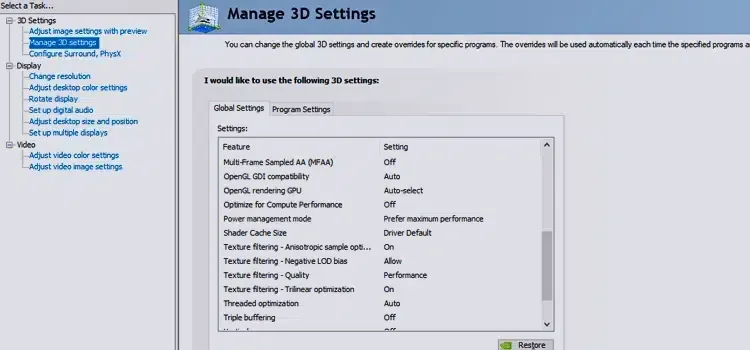
Change the processor selection to your video card model from the Surround, PhysX Configuration section. Then switch to the Managing 3D Settings tab. In this tab, you can set the Texture Filtering - Quality setting "PerformanceChange to ". Also power management mode"Prefer maximum performancePress the Apply button.
You May Also Like: Terraria NPC Happiness Guide
Set Windows Power Options to "High Performance"!
VALORANT FPS INCREASE In our guide, it's time for power options. If you have not made any changes to your computer settings, the power management is set to balance. In balanced power mode, your processor only works when it is needed.
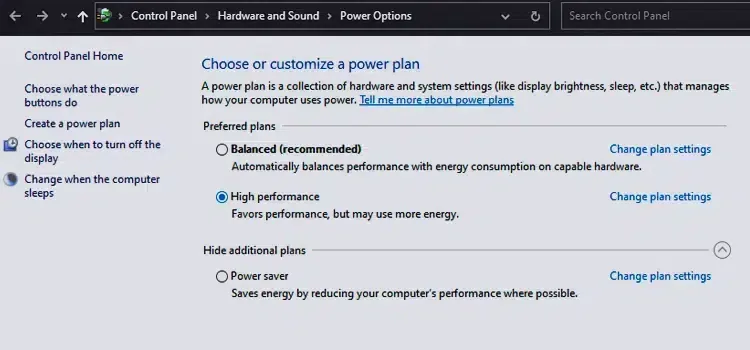
When the load on the processor is reduced, its performance is automatically reduced. However, if you choose high performance from the Windows Power Options setting, your processor will always give the best performance. We would like to point out that this situation will be reflected directly on your electricity bill.
Result
In this article we describe VALORANT FPS INCREASE After applying the methods, there will be an increase in the FPS value you receive. The FPS increase will vary according to the features of the computer's hardware you are using. After making the game more fluid playerkonseyi.com/valorant-arti-crosshair-how-how/ Click on the link to learn about the plus crosshair construction that will raise your KDA.