
How Do You Recover Deleted Contacts on iPhone?
This content was independently prepared by the Oyuncu Konseyi editorial team. Sponsored and partnership content is always clearly labeled. Details: Editorial Standards
Table of Contents
Deleting a contact by accident on your iPhone feels like a small disaster, but it is not always permanent. If your contacts sync with iCloud or a Google account, there are a few real ways to get that number back. Can you recover deleted contacts on iPhone? Which method actually works for your situation?
How Does iCloud’s Data Recovery Feature Work?
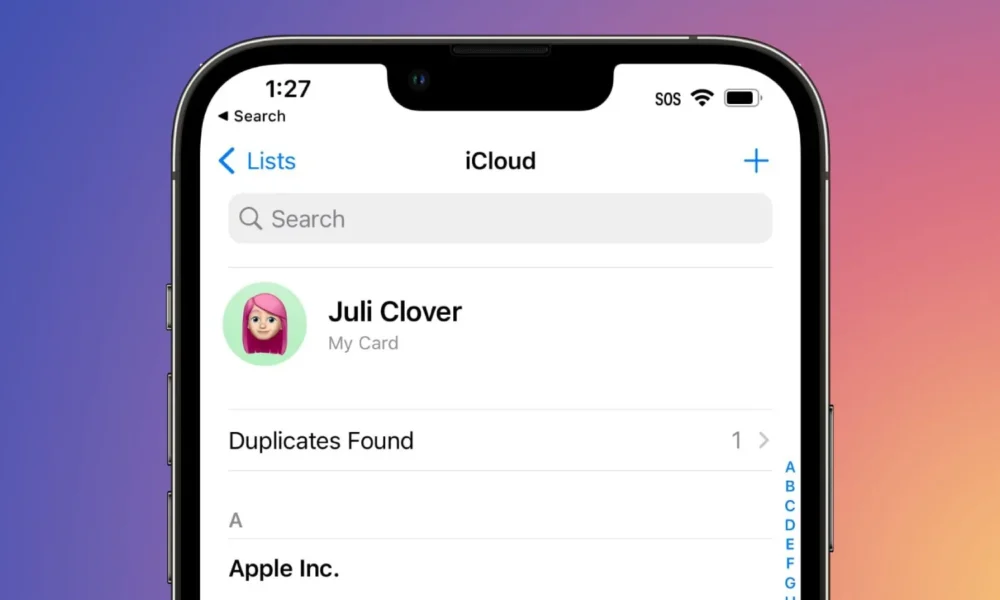
If your contacts sync with iCloud, Apple’s official data recovery tool is the most reliable option. The process restores your entire contact list to an earlier point in time rather than picking out a single contact, so it is worth checking what you might lose before starting. Follow the steps below to restore deleted contacts through iCloud.
- Go to iCloud.com from a computer or your phone and sign in with your Apple Account.
- Scroll to the bottom of the page and open Data Recovery.
- Select Restore Contacts.
- Find the archive dated before you deleted the contact and select Restore.
- Select Restore again to confirm.
The archive you choose replaces the contacts on all your devices at once. Apple automatically archives your current contacts first, so you can go back if something goes wrong. Once the restore finishes, you get a notification on iCloud.com and an email to the address on file.
How Long Do iCloud Archives Last?
iCloud does not keep contact archives forever, the window is roughly 30 days. Once an archive ages out, it is gone for good. If you just deleted a contact, the archive covering that change might not appear right away, in some cases it can take up to 24 hours to show up.
That makes checking iCloud.com as soon as you notice the loss safer than waiting a few days. Past the 30-day mark, there is not much iCloud itself can do for you.
How Do You Recover Deleted Contacts Through Google?
If your contacts sync with a Gmail account, two different approaches apply. One is turning on contact syncing directly on your iPhone, the other is using Google Contacts’ own trash.
To turn on syncing from your iPhone, follow these steps.
- Open Settings on your iPhone and tap Contacts.
- Go to Accounts, select the Google account tied to your contacts, or tap Add Account if it is missing.
- Turn on the toggle next to Contacts.
- Your Google contacts should appear on your phone within a few minutes.
Separately, contacts.google.com has its own Trash folder. Deleted contacts sit there for 30 days, and you can restore them one at a time or all at once. After that window closes, the contact is permanently removed from Google’s servers.
Losing a number from your contacts is less alarming once you remember which account it syncs with. iCloud users have the Data Recovery tool, Gmail users have the Google Contacts trash, and both work more often than people expect. Since both options are time-limited, checking sooner rather than later gives you the best odds. Which account do your contacts sync with?
Frequently Asked Questions
Will restoring from iCloud delete contacts I added later?
Yes, an iCloud restore replaces your entire contact list with the archived version you pick. Anything added after that archive date can be lost in the process. It helps to note down your current contacts before restoring.
Can I recover a contact that was never synced anywhere?
There is no official recovery path for a contact that was not backed up through iCloud or Google. Third-party data recovery tools can sometimes help, but results are not guaranteed. Syncing your contacts to an account ahead of time is the safest way to avoid this.