
 Add as a preferred source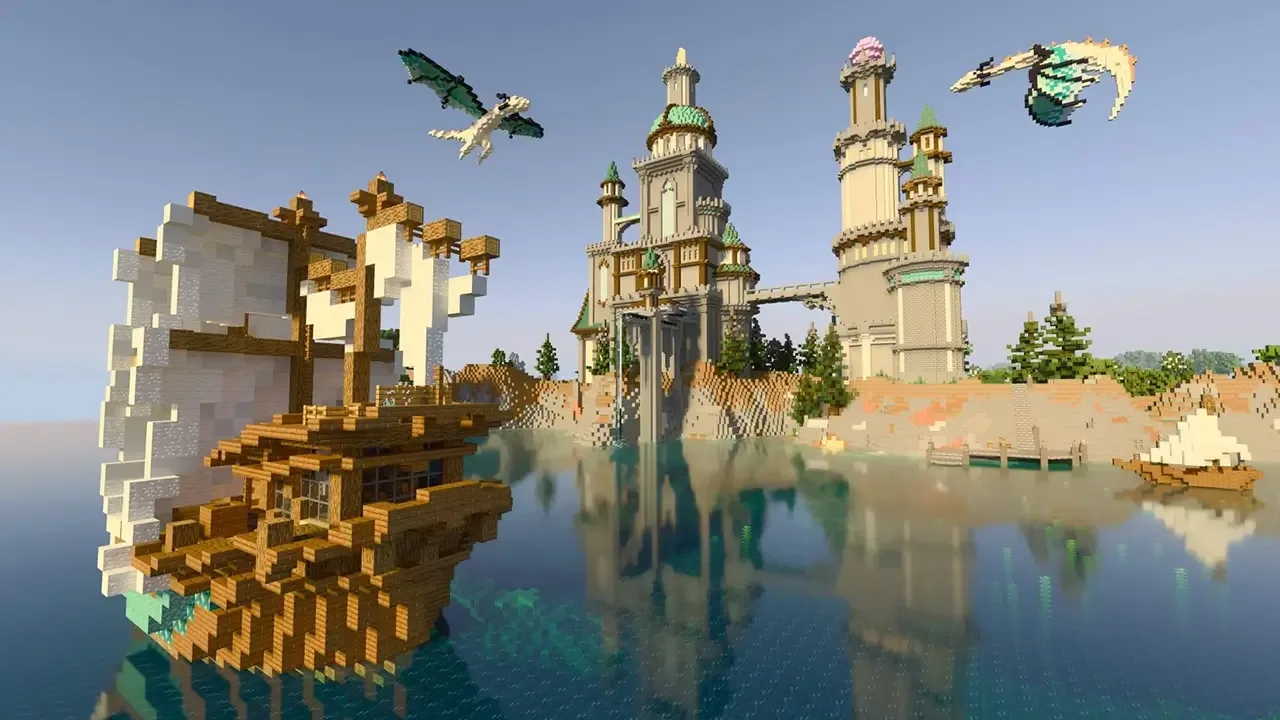
Minecraft continues to be loved and played by many players today. Minecraft, which especially supports innovative technologies such as RTX, can offer players a more enjoyable experience. well, How to open and close Minecraft RTX? Let's answer the curious questions!
What is RTX (ray tracking)?
RTX, which is used in most games today, makes the lighting in the game realistic. With RTX technology, the lighting in the game is imitated as in real life. Thus, players are provided with a much more natural lighting and high-level image quality.
How to open Minecraft RTX?
- First start Minecraft Bedrock Edition.
- Click on the Market tab from the main menu.
- In the search section at the top right, type "RTX" and search.
- Select and download one of the maps that support RTX mode.
- After the download is complete, from the menu with the downloaded map, "Create this world!" Click the button.
Following the above steps minecraft rtx opening You can complete the process without any problems. However, to enable RTX mode in Minecraft, you must have the RTX graphics card as well as the Windows 10 and above operating system.
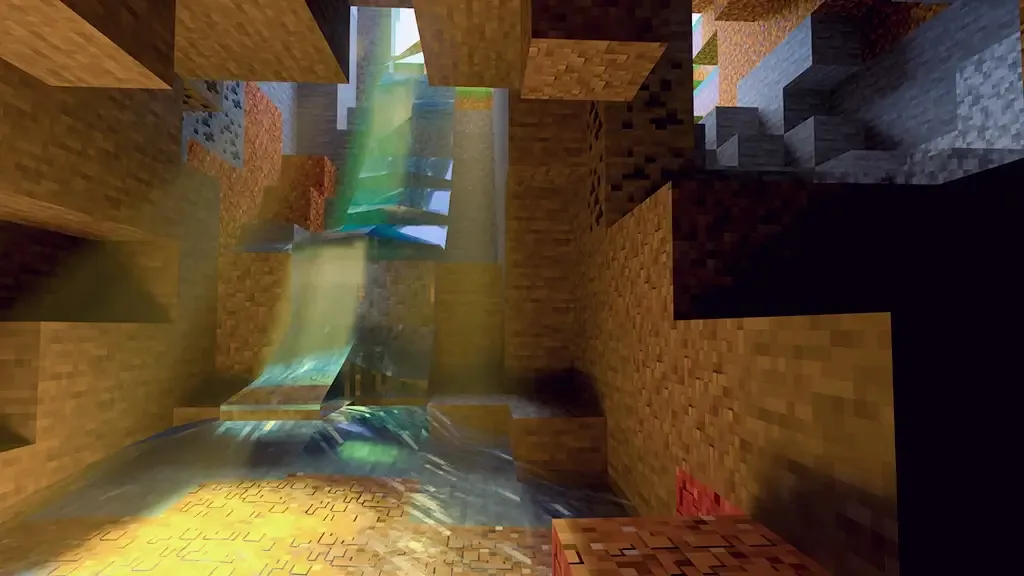
Unfortunately, if your video card does not support RTX technology, you cannot open RTX in Minecraft. Besides, only Minecraft Bedrock We would also like to point out that the version offers RTX support.
You May Also Like: FM 2022 LIVID 22 Dark Theme Pack
Minecraft RTX shutdown steps method
If you want to turn off RTX technology, first open the Settings menu. Then click on the "Video" tab. Clicking on any option that appears in the "Graphic Mode" section at the bottom of the screen Minecraft rtx shutdown you can perform the process.
Result
In this content Minecraft rtx on and off We explained step by step how the transactions are done. By following all the steps, you can experience Minecraft game with RTX technology. More Game Guides Check out the relevant category for!